Lexmetry user manual
Accounting
Last updated 1 November 2026. Describes version 3.8.0 of the Accounting module. Written for the people in a firm who keep the books: accountants, the office manager, and the partners who read the reports.
If you read nothing else: invoices, credit notes, receipts and expenses that your firm records in billing reach the books by themselves, a few seconds later. You never type them in again. What you enter by hand is everything billing does not know about: vendor bills, salaries, taxes you pay, fixed assets, partner capital and bank transfers. A posted entry is never edited. To correct one, you reverse it and post it again.
Words used in this manual
A few words have one fixed meaning here. The glossary at the end lists the rest.
- Billing means the parts of Lexmetry your firm already uses: time entries, matters, invoices, the Payments screen and expenses.
- The books means the accounting ledgers that the Accounting module keeps.
- Receipt means money a client pays the firm. You record it on the Payments screen. In the books it becomes a receipt voucher.
- Payment voucher means money the firm pays out: to a vendor, a member of staff, or the government.
- Expense means an amount someone spends that the firm records in billing. An expense on a client's matter is an OPE (out-of-pocket expense), which the firm later bills to the client. An expense with no matter is a firm overhead.
- Voucher means one double-entry record in the books. Its debits always equal its credits.
- Post means to write a voucher into the books. A posted voucher is final.
- Reverse means to post a mirror voucher that cancels one already posted. Both stay visible.
What posts by itself, and what you enter
This table is the shortest way to understand the module. The left half comes from billing. The right half is your work.
| When this happens | Where | What the books get | Who does it |
|---|---|---|---|
| An invoice is issued or voided | Invoices | A journal voucher, when the invoice carries GST the firm must pay or the firm keeps accrual books | Automatic |
| A credit note is issued or cancelled | Invoices | A journal voucher that undoes the matching part of the invoice entry | Automatic |
| A receipt is recorded or deleted | Payments | A receipt voucher: bank, TDS (tax deducted at source) and income or debtors | Automatic |
| An expense is recorded or changed | My Expenses, OPE Management | On accrual books, the amount owed. On cash books, nothing yet | Automatic |
| An expense is marked paid | Accounting, Expense Queue | A payment voucher from the bank you choose | Automatic after you press Mark as paid |
| An expense is written down to the firm | OPE Management | A journal voucher that moves it from Disbursements Recoverable from Clients to the firm's expense | Automatic |
| A vendor sends a bill | Vendor bills | Expense, input GST (goods and services tax), TDS withheld, amount owed | You |
| Salaries are paid | Payroll | One payroll journal, and PF, ESI and salary TDS challans | You |
| The firm pays TDS, advance tax or GST | TDS Payable, Advance tax, GST Centre | A payment voucher against the tax ledger | You |
| The firm buys a fixed asset, or depreciation is due | Fixed assets & depreciation | The asset register, and a depreciation journal when you run it | You |
| A partner brings in or draws money | Partner capital | A capital entry against bank or cash | You |
| Money moves between the firm's own accounts | Contra voucher | A contra voucher | You |
| Anything else | Vouchers | A receipt, payment, contra or journal voucher you write line by line | You |
How billing reaches the books
Each time someone saves a money change in billing, Lexmetry saves a note of it in the same moment: the books queue. A background worker reads the queue every few seconds, in the order the changes happened, and posts the matching voucher. If the change is undone, the note goes with it, so the books never hear about something that did not happen.
What each billing action posts
Dr is the debit side of a voucher and Cr is the credit side. Which side gets what depends on your firm's accounting basis: cash books record income when the money arrives; accrual books record it when the invoice is issued.
| Billing action | Cash basis | Accrual basis |
|---|---|---|
| Invoice issued | Nothing, unless the invoice is forward charge (see GST). Then: Dr GST Output Control Cr GST Payable (CGST, SGST or IGST) A pure-agent invoice posts nothing. |
Dr Sundry Debtors, for the amount the client owes Cr Professional Fees Income Cr Disbursements Recoverable from Clients, for the expenses billed at cost Cr Adhoc / Other Recovery Income, for any margin on expenses Plus the GST entry, as on cash, when forward charge A pure-agent invoice carries no fees and no GST, so it posts Dr Sundry Debtors, Cr Disbursements Recoverable from Clients. |
| Invoice voided | The invoice's vouchers are reversed. | |
| Credit note issued | Reverses the GST entry, when the original invoice was forward charge. Otherwise nothing. | Reverses the GST entry when forward charge, and posts the opposite of the invoice entry for the credit note's value: Dr Professional Fees Income for the fees credited, Dr Disbursements Recoverable from Clients and Dr Adhoc / Other Recovery Income for the expenses credited (split the way the invoice billed them), Cr Sundry Debtors. |
| Receipt recorded | Dr Bank, for the money banked, on the ledger of the bank account named on the receipt Dr TDS Receivable, for the tax the client deducted Cr Professional Fees Income Cr Disbursements Recoverable from Clients, for expenses recovered at cost Cr Adhoc / Other Recovery Income, for any margin Cr GST Output Control, for GST the client paid on a forward-charge invoice (Cr GST Payable on the "On receipt" GST basis) Cr Client Advances (Unbilled), for anything else paid in excess |
Dr Bank Dr TDS Receivable Cr Sundry Debtors, to settle what the invoice booked, GST included on a forward-charge invoice On the "On receipt" GST basis: Dr GST Output Control, Cr GST Payable, for the GST received Cr Client Advances (Unbilled), for any other excess |
| Receipt deleted | The receipt voucher is reversed. A receipt's amount cannot be changed: delete it and record it again, and the books follow both steps. | |
| Expense recorded | Nothing yet. | Dr the expense's ledger (see which ledger) Cr Reimbursements Payable to Staff, when a member of the firm paid it, or Sundry Creditors for anyone else |
| Expense marked paid | Dr the expense's ledger Cr Bank, for the rupees actually paid |
Dr the payable booked when it was recorded Cr Bank Any rupee difference on a foreign expense goes to Exchange Difference |
| Expense written down | Once the expense is on a ledger (paid, on cash books; recorded, on accrual books): Dr the category's expense ledger, else Office Expenses Cr Disbursements Recoverable from Clients (or the asset the category maps to), for the amount written down Reversing the write-down reverses this entry. A write-down before payout on cash books posts with the payout. |
|
A credit note splits fees and expenses, as an invoice does. Cancel and reissue, and a write-off of fees and expenses, take the invoice's own split. A write-off of fees only credits the fees and their GST, and the expenses stay owed. On a partial credit note you type the fees credited and, when the invoice billed expenses, the expenses credited. Lexmetry refuses an expense amount above what the invoice billed less what earlier credit notes already credited, and the message tells you the most you can enter. Older credit notes credited fees only, and they stay as they were.
Every voucher is in rupees. A foreign-currency invoice is converted at its own rate: the rupee equivalent printed on the invoice, or else your firm's exchange rate on or before the invoice date. A credit note uses its invoice's rate. On a cash basis a foreign receipt posts what the bank actually credited, with any charges the bank kept on Bank Charges. On accrual the receipt clears the debtor at the invoice's rate, and the difference goes to Exchange Difference.
Because the books need that rate, Lexmetry refuses to issue a foreign-currency invoice when no rate is on file for its date. The message names the currency and the date, and tells you to enter the rate in System Management, FX Rates. That is not the Multi-currency screen in Accounting. Enter the rate there, then issue again. This applies to every firm, with or without accounting.
When the books fall behind
The queue never skips an entry and never posts one out of order. If an entry cannot post, everything behind it waits, and the queue tries again every few minutes until it succeeds. The Accounting page checks every 30 seconds and shows one of two banners:
- Amber, "Books catching up": entries are waiting their turn. This is normal for a few seconds after busy work, and for a while after a backfill. It clears by itself.
- Red, "Books posting is stuck": an entry keeps failing. The banner shows since when, and the reason underneath. Nothing is lost, but the books stay behind until the cause is fixed.
The usual causes of a red banner, and their cure:
| Cause | Cure |
|---|---|
| An invoice or credit note issued before version 3.7.19 is dated inside a closed period | Reopen the period on Period close & review, let the queue drain, then close it again. Since 3.7.19 such a document is refused at issue, so this cause does not recur. |
| A ledger the entry needs was removed, or the chart of accounts was never set up | Press Repair default Chart of Accounts on Accounting Settings |
| An old foreign-currency invoice has no exchange rate for its date | Enter the rate for that date in System Management, FX Rates |
If the reason is not one of these, tell your Lexmetry contact. The platform team is alerted as well when an entry fails or the queue is more than an hour behind.
What the period lock stops in billing
When you close a period on Period close & review, billing respects the same date:
- A receipt dated on or before the lock date cannot be recorded or deleted on the Payments screen. The message reads: "The receipt date falls in a closed accounting period."
- An expense cannot be marked paid while today falls inside a closed period.
- An invoice or credit note dated on or before the lock date cannot be issued when it would post to the books at issue: forward-charge invoices on either basis, and every invoice and credit note on the accrual basis. Cancelling a credit note, or cancelling and reissuing an invoice, is refused the same way when it would post in the closed period. A reverse-charge invoice on the cash basis posts nothing at issue, so it still issues.
Automatic expense entries are the one exception: one whose date falls in a closed period posts on the first open day instead.
Before accounting was switched on
Billing work done before the module was switched on does not reach the books by itself. If your firm switches on part way through a financial year, use the current-year backfill to bring the year so far into the books.
Getting started
Switching the module on
Accounting is an optional module. Your Lexmetry provider switches it on for your firm; nobody inside the firm can. Until then the Accounting item does not appear in the side menu, and nothing else in Lexmetry changes. If the module is later switched off, your books are kept, and switching it on again brings them back.
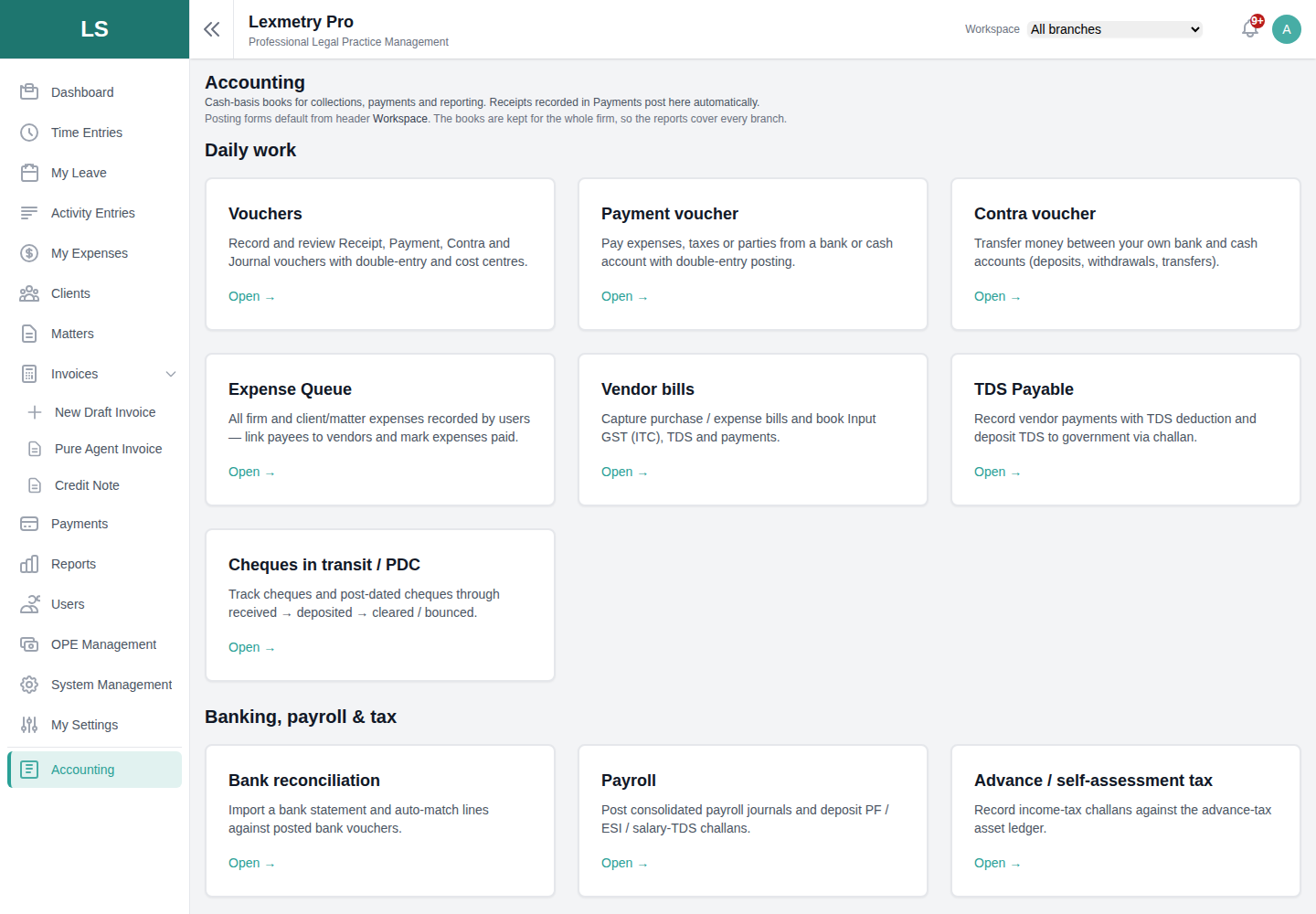
Once it is on, Accounting is the last item in the side menu, below a line. It opens a page of cards grouped as Daily work; Banking, payroll & tax; GST; Reports; and Masters & setup. Every screen has an Accounting link at the top that brings you back. On the Vendors, TDS Payable and Expense Queue screens, a small "i" beside a field explains it: point at it, or move to it with the Tab key.
Who can do what
Three permissions decide it. Your firm administrator sets them per role in System Management, Roles & Permissions, under the Accounting module.
| Permission, as the Roles screen shows it | What it allows | Given by default to |
|---|---|---|
| "Read the books." | Open every Accounting screen and report | Super admin, Admin, Firm Head |
| "Run the accounting day to day" | Post vouchers and payments, run GST, keep vendors, partner capital, banking, payroll and depreciation, approve vouchers, close periods and the year | Super admin, Admin, Firm Head |
| "Edit the accounting configuration" | Change Accounting Settings, the chart of accounts, cost centres, expense category ledgers, the books' exchange rates, TDS rates, asset blocks, opening balances, and run the backfill | Super admin, Admin |
"Run the accounting day to day" is a bundle of nine narrower permissions. A firm that wants to split the work, for example payroll to one person and GST to another, can give those separately instead.
Each button shows only to people who hold the permission its action needs. Where a role is built from the narrower permissions, these are the ones to know: payment and contra vouchers, and approving or rejecting vouchers on Period close & review, need "Post journal vouchers"; depositing TDS and posting statutory or advance-tax challans need "Post payment vouchers". Both come with "Run the accounting day to day". Linking a vendor and marking an expense paid on the Expense Queue need "Run the accounting day to day" itself.
What is set up for you
Switching the module on prepares the books so you can start straight away:
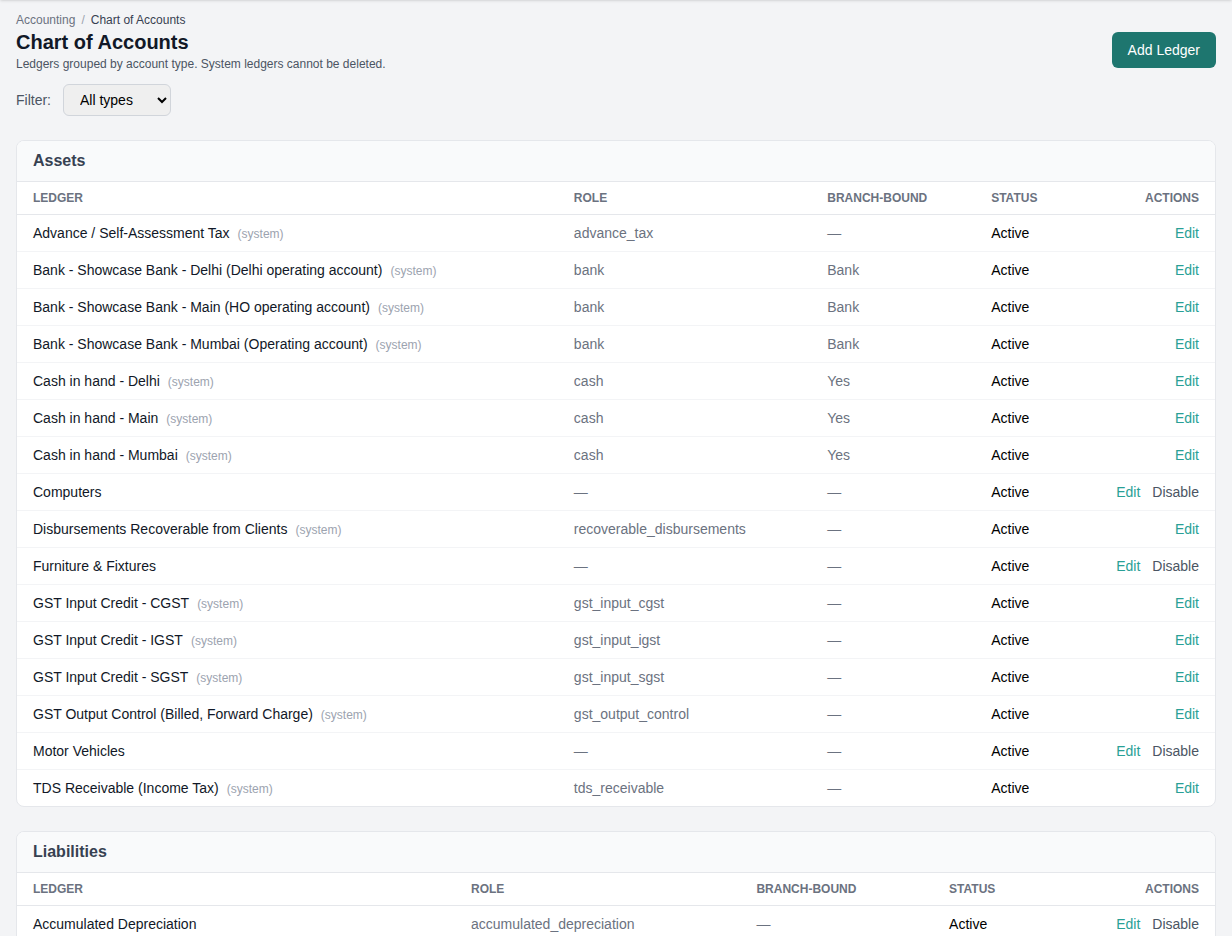
- A chart of accounts grouped as Assets, Liabilities, Income, Expenses and Equity, with about thirty ledgers: Professional Fees Income, TDS Receivable, the GST ledgers, Client Advances (Unbilled), Partner Capital, Partner Drawings, Rent, Salaries & Wages, Bank Charges, Depreciation Expense and others.
- One bank ledger per branch bank account, named like "Bank - HDFC Bank - Mumbai", and one "Cash in hand" ledger per branch.
- Ledgers that appear when first needed: Sundry Debtors, Sundry Creditors, Reimbursements Payable to Staff, Disbursements Recoverable from Clients and Exchange Difference. Do not create these yourself.
- The TDS master under the Income-tax Act, 2025: section 392 for salaries and section 393 for other payments, with the common payment codes (professional fees 1027 at 10%, rent of land or building 1009 at 10%, contractors 1023 and 1024 at 1% and 2%, and others). Rates can be edited. Each row also shows the old 1961 section for reference.
- Seven asset blocks for depreciation, at the Income-tax rates: residential buildings 5%, other buildings 10%, furniture and fittings 10%, plant and machinery 15%, motor cars 15%, computers and software 40%, intangibles 25%. Each block's book rate starts equal to its tax rate. Books are not seeded: add a block for them at the rate your advisor confirms.
Lexmetry never overwrites a ledger or a setting you have changed. If something is missing later, Repair default Chart of Accounts on Accounting Settings puts back only what is missing.
Settings to check first
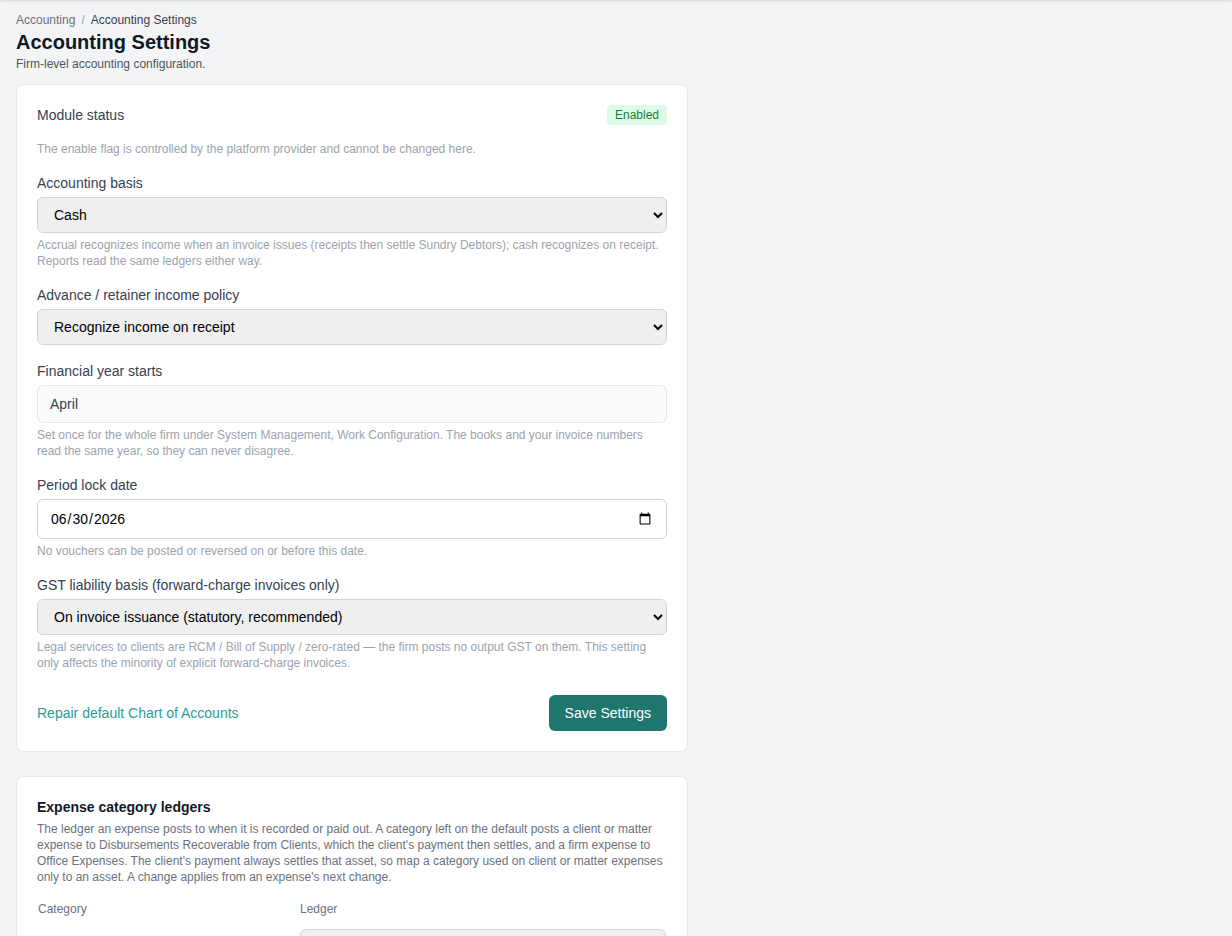
Open Accounting Settings and check four things before anything posts:
- Accounting basis. Cash (the default) or Accrual. See Cash or accrual. Choose before work starts: entries already posted keep the basis they were posted under.
- GST liability basis. Leave it on "On invoice issuance" unless your accountant says otherwise. It matters only for the few invoices that are forward charge. "On invoice issuance" posts the GST payable when the invoice is issued; "On receipt" posts it when the client pays the GST.
- Financial year. Shown here but set for the whole firm by your provider, so the books and your invoice numbers always agree on the year.
- Expense category ledgers. The table at the bottom of the page decides which ledger each expense category posts to. Unmapped expenses on a client's matter go to Disbursements Recoverable from Clients; unmapped firm expenses go to Office Expenses. Map a category used on client expenses only to an asset ledger. A changed mapping applies to an expense the next time it changes, not to entries already posted.
Opening balances
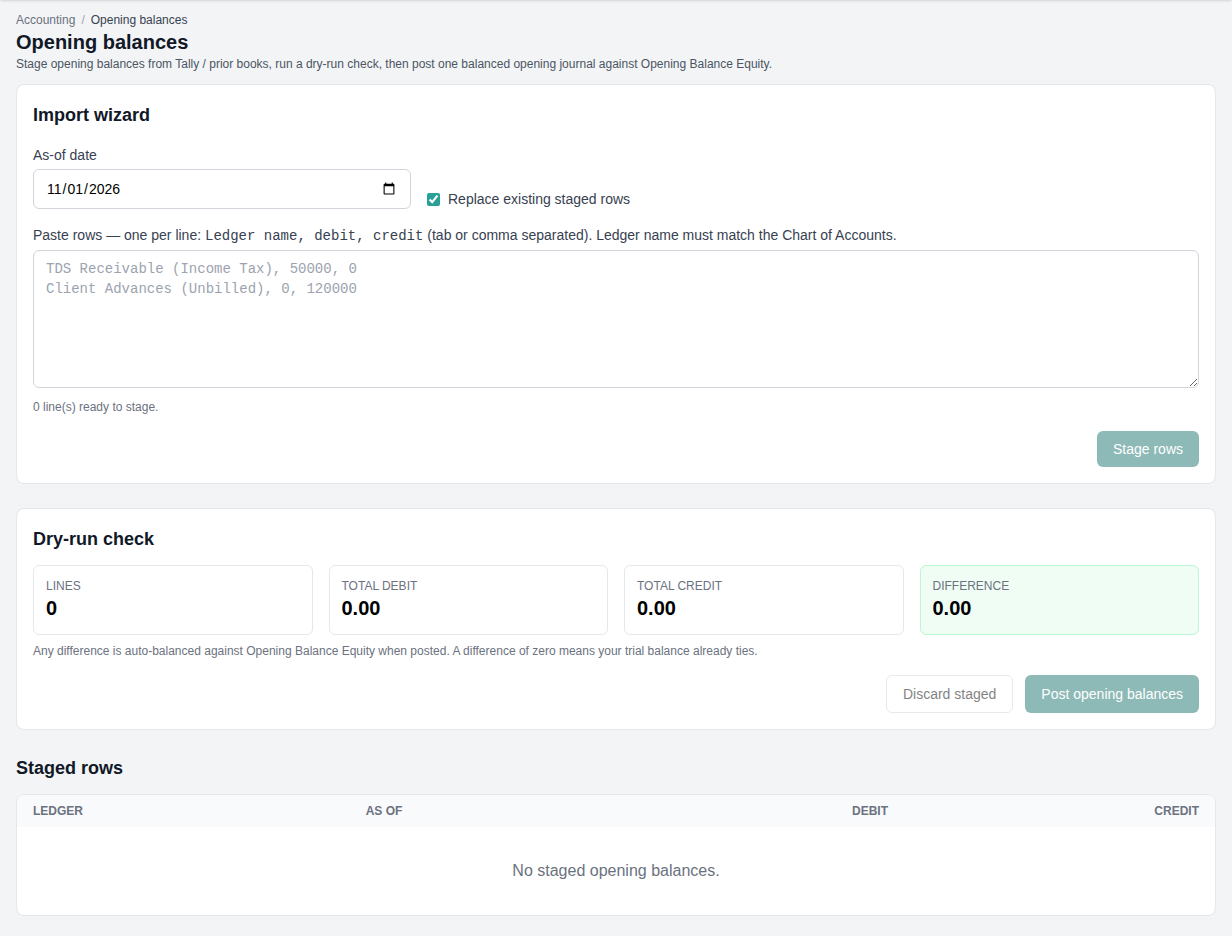
The books need to know what every ledger held on the day they start. On Opening balances, which needs the configuration permission:
- Enter the As-of date: the first day of the books, normally the first day of the financial year.
- Paste one row per ledger: ledger name, debit, credit. The name must match the chart of accounts exactly. You can copy these from a trial balance out of Tally or your earlier books. Press Stage rows.
- Read the Dry-run check: lines, total debit, total credit and the difference. Any difference will go to Opening Balance Equity, so a large one usually means a missing row.
- Press Post opening balances. Lexmetry posts one journal voucher, balanced against Opening Balance Equity.
If you switch on mid-year, the backfill proposes two of these rows for you. Enter bank, capital and the other balances yourself, as at the same date.
Starting part way through the year
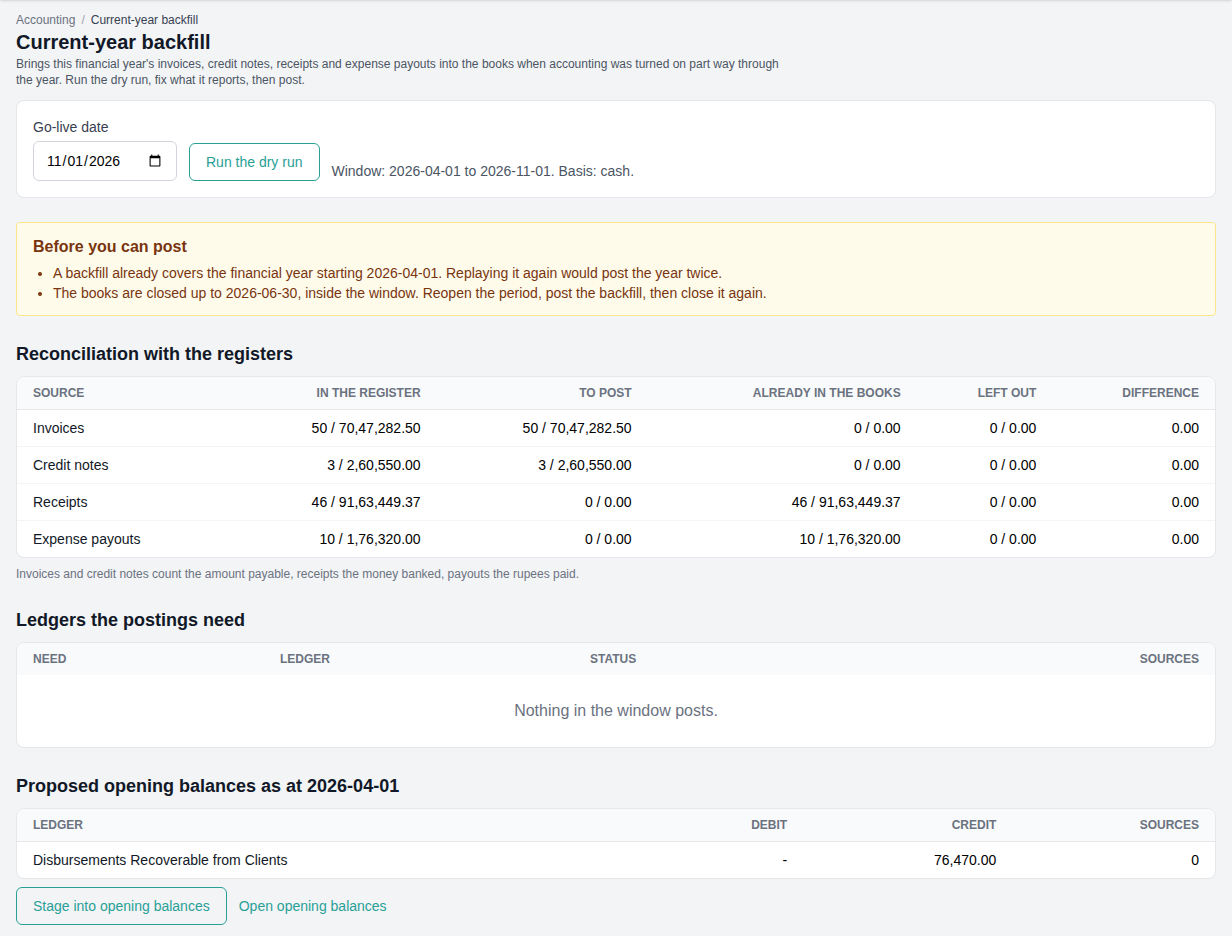
Most firms switch accounting on part way through a financial year. Without help, their books would start on the switch-on day, and the year's figures would be wrong. The Current-year backfill screen brings this year's invoices, credit notes, receipts and expense payouts into the books, through the same route live work takes. It needs the configuration permission.
- Post the opening balances as at the first day of the financial year, not the switch-on day. The backfill refuses to run if they are dated later, because the year would be counted twice.
- Set the go-live date: the day accounting was switched on. It defaults to today. The backfill covers the financial year's first day up to this date.
- Press Run the dry run. Nothing posts. The screen shows what it would do.
- Check the reconciliation. For invoices, credit notes, receipts and expense payouts, the screen compares the billing register with what it will post, what is already in the books, and what it leaves out. The Difference column must read 0.00 for each.
- Clear everything under "Before you can post". The table below lists each message and its cure.
- Enter rupees for foreign payouts. An expense in a foreign currency paid before this feature existed has no rupee figure. Type the rupees that left the bank and press Save rupees.
- Stage the proposed opening balances. The screen works out two opening figures at the year start: Disbursements Recoverable from Clients (expenses not yet billed or recovered) and, on accrual books, Sundry Debtors (invoices still unpaid). Press Stage into opening balances, then post them from Opening balances with the rest.
- Press Post the backfill. The entries go to the books queue. The amber "Books catching up" banner shows on the Accounting page until the queue drains. This is expected.
| The screen says | What to do |
|---|---|
| A backfill already covers the financial year | Nothing. The backfill runs once per year. |
| The chart of accounts is not set up | Press Repair default Chart of Accounts on Accounting Settings, then run the dry run again. |
| The books are closed up to a date inside the window | Reopen the period, post the backfill, let the queue drain, then close it again. |
| Opening balances are posted after the year start | Reverse that opening journal and post the opening balances as at the year start. |
| The postings need ledgers that are not set up | The "Ledgers the postings need" table marks them Missing. Repair the chart of accounts, or add a bank account for the branch. |
| Foreign-currency payouts have no rupee figure | Enter the rupees for each in the Foreign-currency payouts table. |
| Foreign-currency invoices have no exchange rate on file | Enter the rate for each date in System Management, FX Rates, then run the dry run again. |
| Receipts or payouts after the go-live date are not in the books | Move the go-live date to the day accounting was switched on, or later. |
| Every source in the window is already in the books | Nothing to do. |
The backfill replays only what billing knows. Enter the rest of the year yourself: vendor bills, rent, salaries, fixed assets, partner capital and bank movements other than client receipts. Until you do, the year's profit and loss shows only the income side.
On accrual books, a payout this year for an expense from an earlier year is listed under "Left out". Post it by hand. So is a write-down made this year on an expense paid (cash books) or recorded (accrual books) in an earlier year: post it by hand, Dr Office Expenses, Cr Disbursements Recoverable from Clients. Write-downs on this year's expenses come in with them. Anything already in the books, for example vouchers carried over from your previous system, is left alone.
Day to day
Client receipts
Record the receipt on the Payments screen as usual. The receipt voucher posts by itself, to the ledger of the bank account you chose on the receipt (the invoice's account for an older receipt that names none, else the branch's first bank ledger). Check it on Vouchers, where automatic vouchers are marked "(auto)", or on Bank Book. To correct a receipt's amount, delete it on the Payments screen and record it again, never in Accounting: the books reverse the old voucher and post the new one. Changing only its details, such as the remarks, does not touch the books.
Paying back expenses
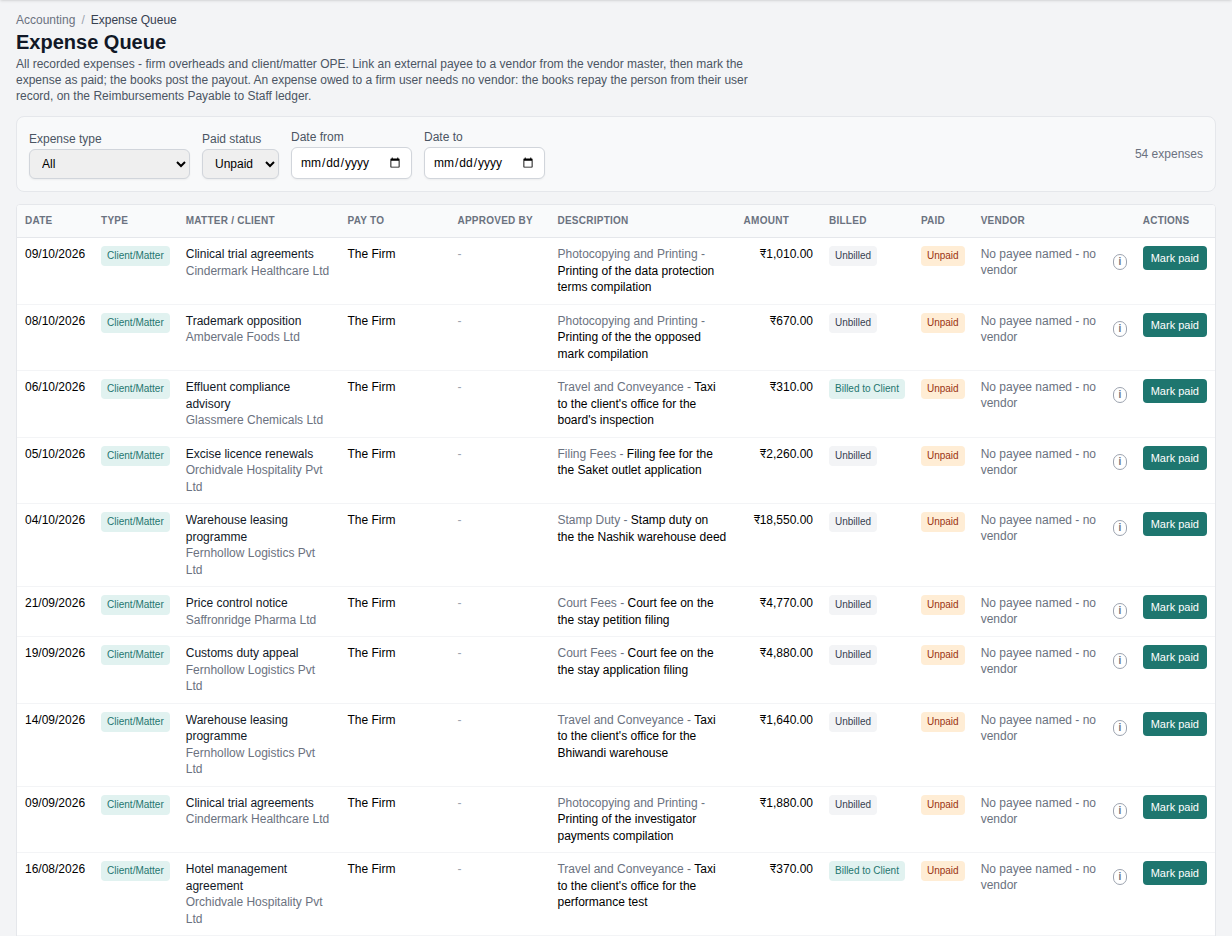
The Expense Queue lists every expense recorded in billing, both firm overheads and client OPE. It opens on the unpaid ones.
- For an expense owed to an outside payee, pick the vendor in the Vendor column and press Link vendor. An expense owed to a member of the firm needs no vendor: the Vendor column reads "Staff member - no vendor needed". An expense with no payee named (Pay To shows The Firm) has no vendor either: the column reads "No payee named - no vendor". Point at the "i" beside either for the reason. While the vendor master is empty, the column reads "No vendors yet": linking is optional, and Mark paid works without a vendor.
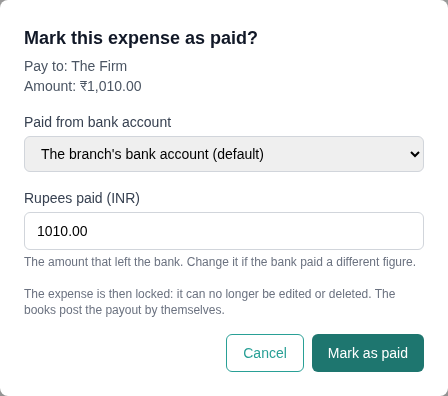
- Press Mark paid. Choose Paid from bank account (the branch's bank is the default) and check Rupees paid (INR): it is filled in for a rupee expense, and you must type it for a foreign one. For a firm expense (one with no matter), Book this cost at asks where the cost sits: the whole firm (the default), a branch, a team or one fee earner (see cost allocation). A client's expense is repaid by the client and does not ask.
- Press Mark as paid. The expense is locked from editing, and the payment voucher posts a few seconds later.
Mark as paid posts the payment voucher for you. Never also post a payment voucher by hand for the same expense, or the books count the payout twice.
Staff are not vendors. The books repay a member of the firm from their user record, on the Reimbursements Payable to Staff ledger, and the voucher names the person. Do not add a person to the vendor master to pay them back: the vendor master drives GST, TDS, MSME and reverse charge, and none of these applies to repaying a person. Staff Reimbursements, under Reports, shows what each person is owed now and what they were paid in a period. Pay salaries through Payroll and partner drawings through Partner capital, never as an expense or a vendor bill, or they land in the wrong TDS return.
How client expenses (OPE) are treated
An expense the firm pays on a client's behalf is neither the firm's income nor its expense. It is money the client owes back. So the books hold it on an asset, Disbursements Recoverable from Clients, from the day it is paid until the client repays it:
- When the firm pays it, the asset goes up.
- On cash books, the client's receipt brings the asset down by the cost recovered.
- On accrual books, issuing the invoice moves the billed cost from the asset to Sundry Debtors, and the receipt settles the debtor.
- Any margin the firm adds on top of the cost is income, on Adhoc / Other Recovery Income.
- An expense written down to the firm (the client will not repay it) moves from the asset to the firm's cost: the category's expense ledger, else Office Expenses. Reversing the write-down moves it back.
Where a cost sits: cost allocation
Every operational or overhead expense is booked against one of four levels, so that team profit can be worked out:
- Fee earner: a cost of one person, such as a bar council subscription, training, or a dedicated allowance.
- Team: a cost of one team or sub-team, such as team software, library resources, or team travel.
- Branch: an overhead of one office, such as rent, utilities, maintenance, or branch admin staff.
- Firm: a central overhead, such as central IT, insurance, brand marketing, or management. This is the default.
On a voucher, a payment voucher and a vendor bill, each line on an expense ledger has a Cost allocation column. Pick the level, then the fee earner, team or branch. Lines on other ledgers, such as the bank, show "Not an expense". A line you leave at Firm, and every expense posted before this feature, counts at firm level. A firm expense paid on the Expense Queue takes its level when you mark it paid, in the Mark paid dialog. The screens do not yet offer a way to change that level after the payout.
Only a person whose role records billable work can take a fee-earner cost. A retired team or an inactive branch takes no new costs. A cost booked to a team also posts to the team's own cost centre, made the first time a cost is booked to the team; it shows on Cost Centres and cannot be made by hand. A branch or a fee earner is not a cost centre: the line records which one the cost belongs to. A branch keeps its own GST registration and profit and loss, which cost centres do not give it.
Vendor bills and TDS
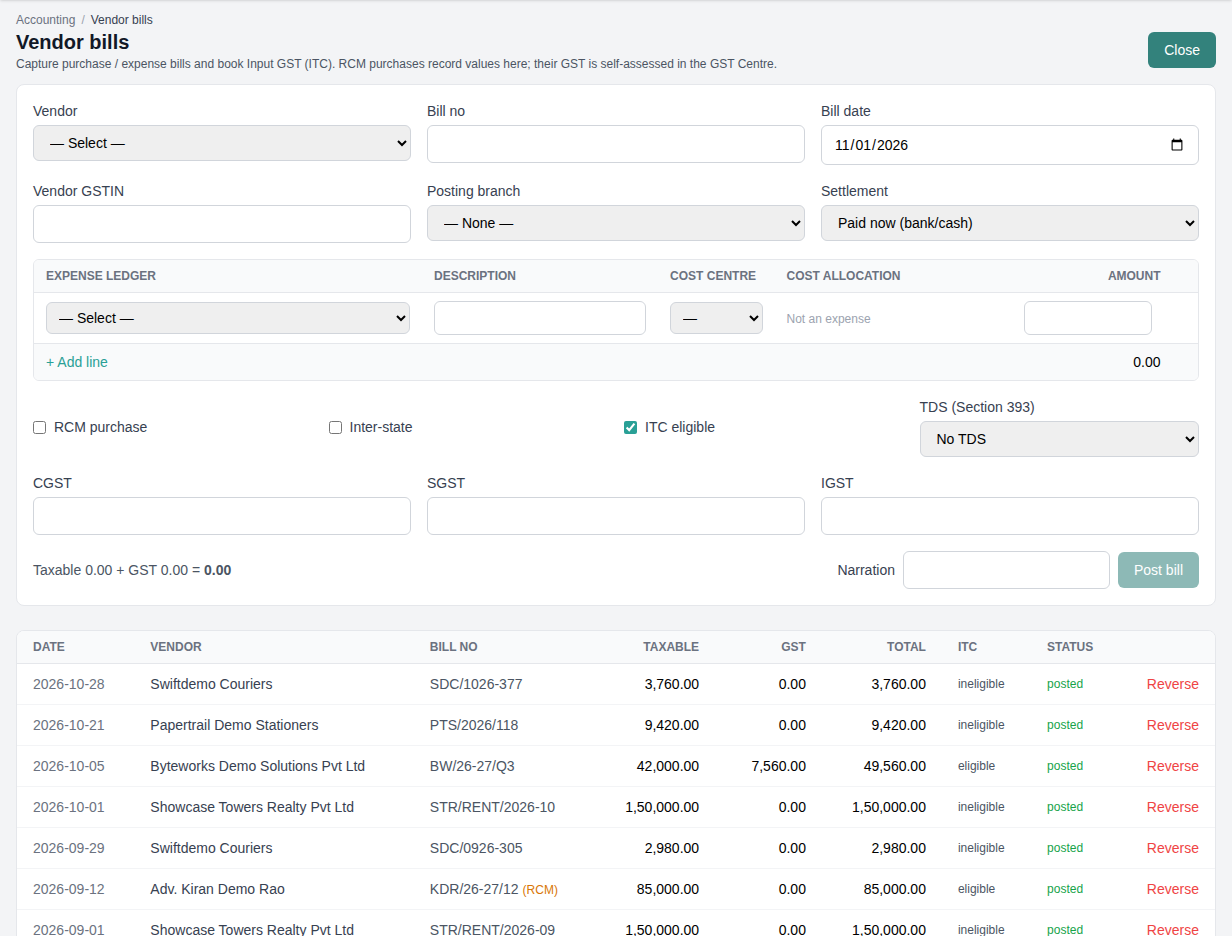
On Vendor bills, press + New bill. Pick the vendor (their GSTIN and default TDS fill in), enter the bill number and date, and add one line per expense ledger. Choose Paid now (bank/cash) or On credit (sundry creditors). Tick ITC eligible if the firm can claim the input GST, and RCM purchase if the firm pays the GST itself under reverse charge. Pick the TDS section if tax is to be deducted, then press Post bill.
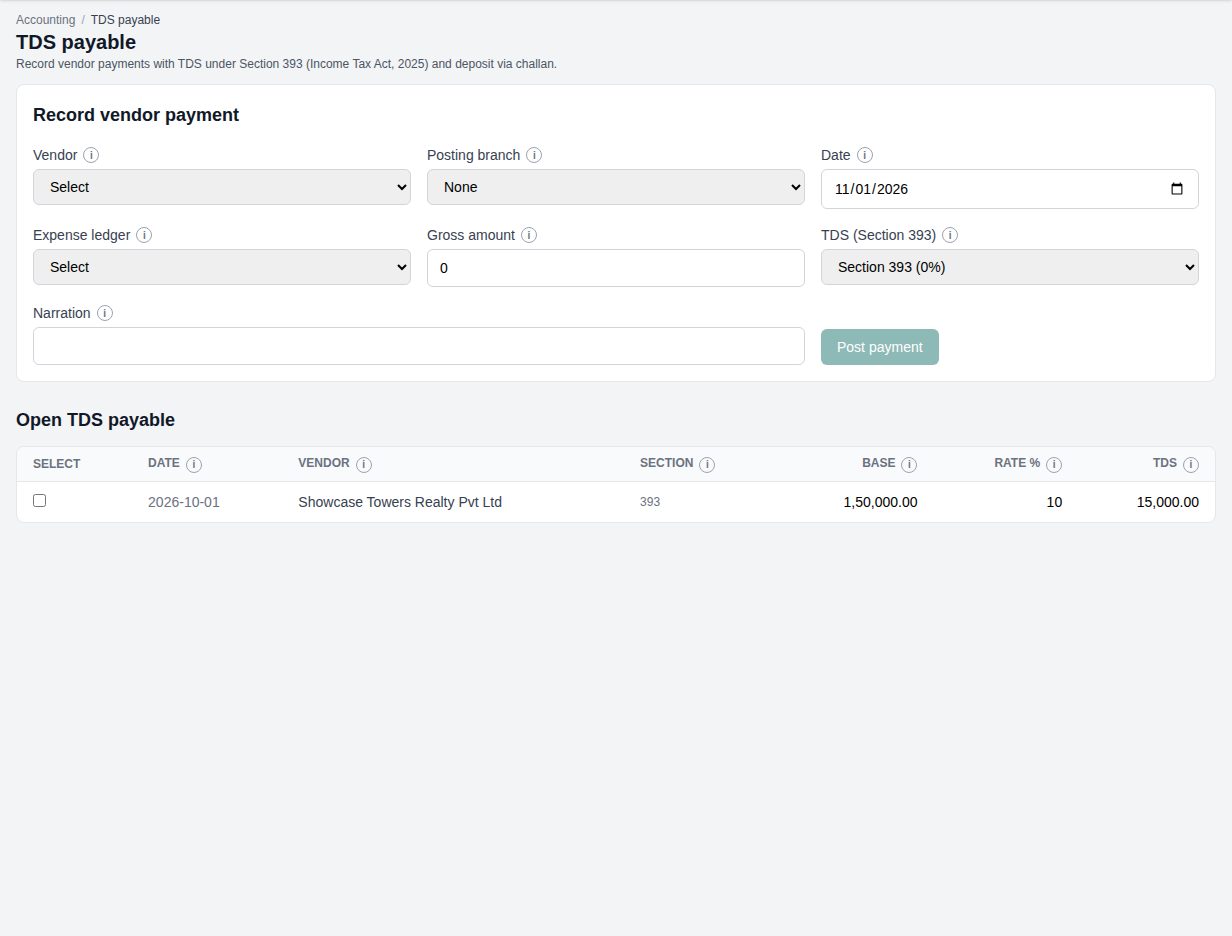
The TDS withheld waits on TDS Payable. When you deposit it, tick the entries the challan covers, enter the challan date, number and BSR code, and press Deposit. The same screen can record a direct vendor payment with TDS when there is no bill.
A bill that has been partly paid cannot be reversed. Keep the Vendors & TDS sections master current: PAN, GSTIN, GST status, MSME registration, bank details and KYC documents (PAN card, GST certificate, bank proof).
Payment, contra and journal vouchers
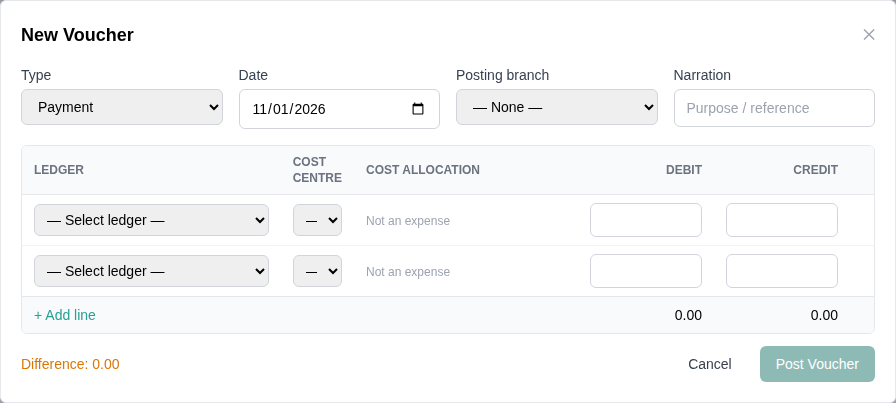
- Payment voucher: pay anything from a bank or cash ledger. Pick Pay from (bank / cash), then one line per ledger paid.
- Contra voucher: move money between the firm's own bank and cash accounts, such as a cash deposit or an inter-bank transfer.
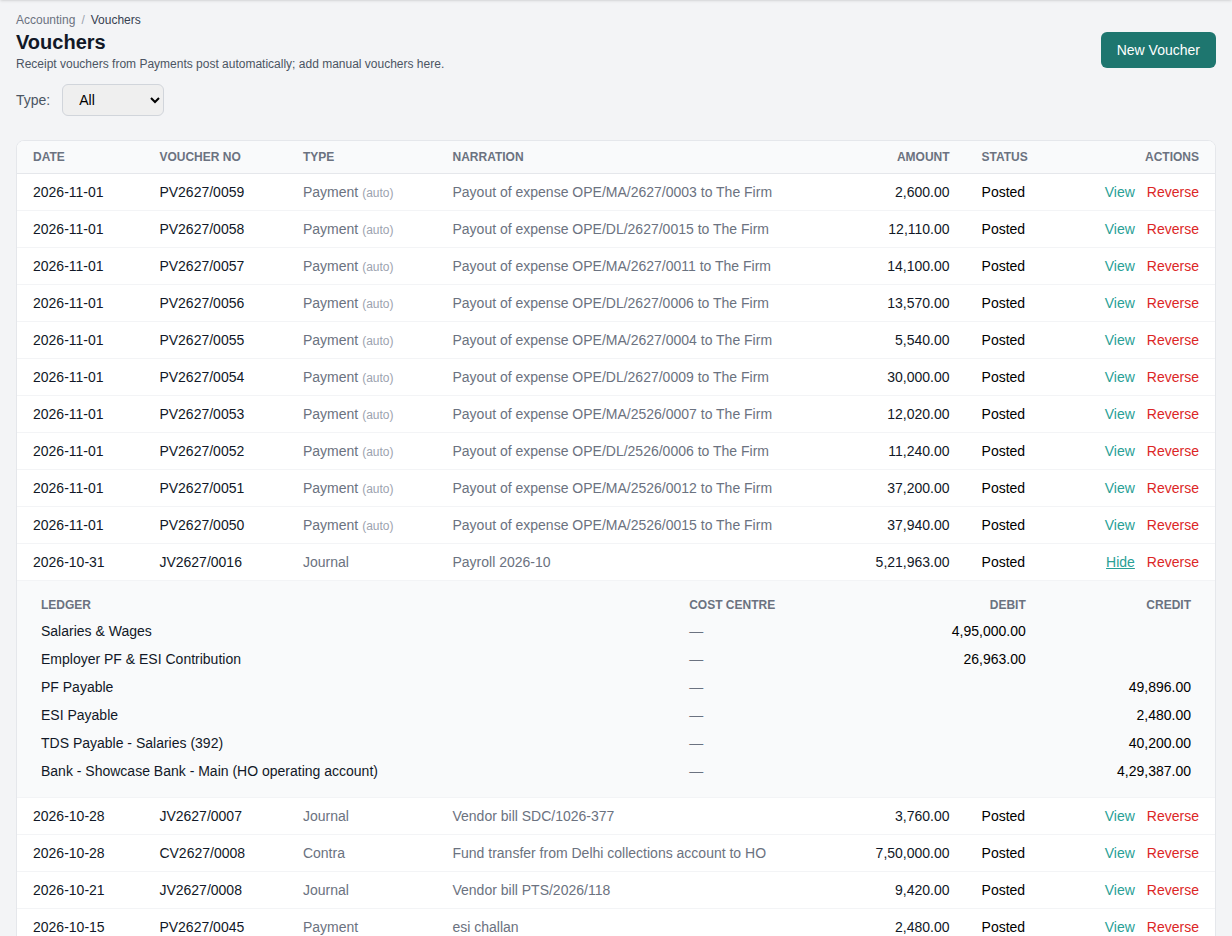
- Vouchers: any receipt, payment, contra or journal voucher, written line by line. Post Voucher stays disabled until the debits equal the credits.
Every voucher you post by hand also enters the review queue on Period close & review, where a second person approves it (see review). Each voucher type has its own number series per financial year: RV, PV, CV and JV.
To correct a posted voucher, press Reverse on it in Vouchers, then post the right one. The reversal is a mirror voucher, and both stay in the books and the audit trail.
Payroll and statutory challans
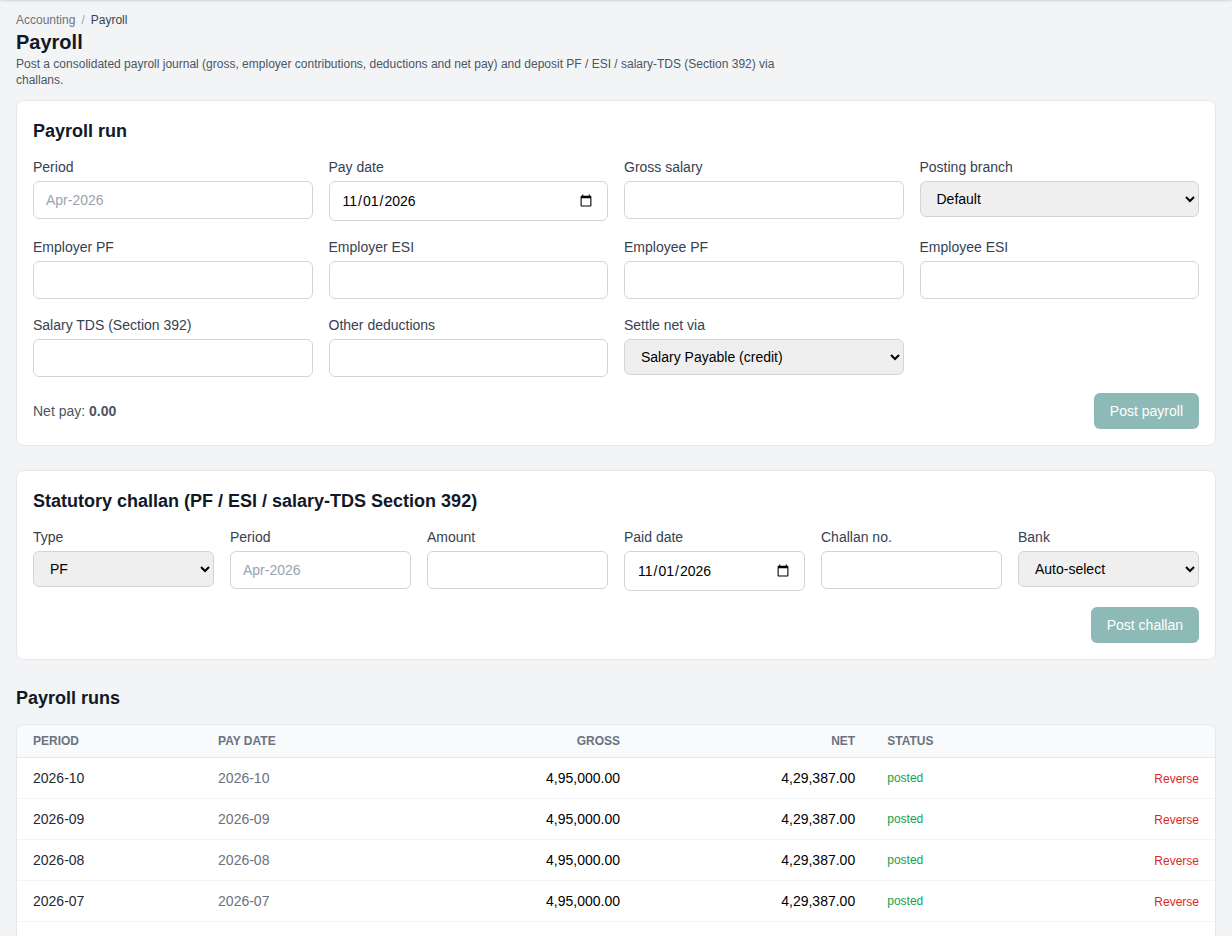
On Payroll, post one consolidated journal per pay period: gross salary, employer and employee PF and ESI, salary TDS under section 392, other deductions, and net pay. Settle net pay to Salary Payable, or straight from a bank. Record PF, ESI and salary TDS deposits as challans on the same screen.
Advance and self-assessment tax
Record each income-tax challan on Advance / self-assessment tax: type, amount, date, period and challan number. Each posts Dr Advance / Self-Assessment Tax, Cr Bank.
Fixed assets and depreciation
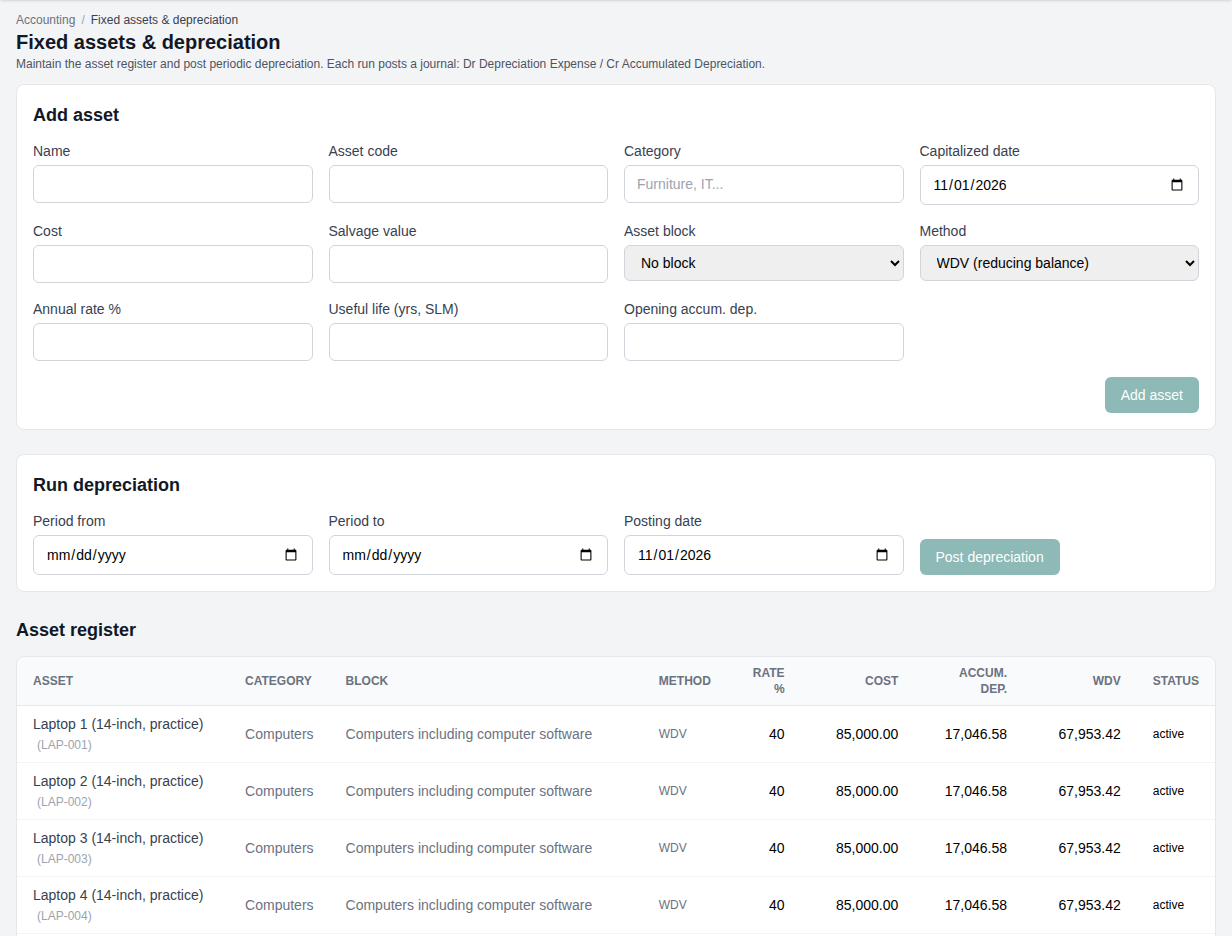
- Add an asset on Fixed assets & depreciation and pick its Asset block. The method and rate come from the block's book side. To give one asset its own rate, tick Override the block's book rate for this asset; the register then shows "(own rate)".
- Run depreciation for a period with Post depreciation. It posts one journal: Dr Depreciation Expense, Cr Accumulated Depreciation.
- Asset blocks carry two rates: the book rate, which the depreciation run posts, and the Income-tax rate, which only feeds the tax schedule. Changing a block never changes an asset already in it. Add default blocks loads the seven standard blocks; pressing it again adds nothing.
- Tax depreciation schedule (under Reports) works out, per block and year, the opening written-down value (WDV), additions, depreciation at the Income-tax rate and closing WDV, for the tax return. An asset used for fewer than 180 days in its first year takes half the rate. The schedule is never posted. Give a block a tax opening WDV for the first year you use the schedule.
Partner capital
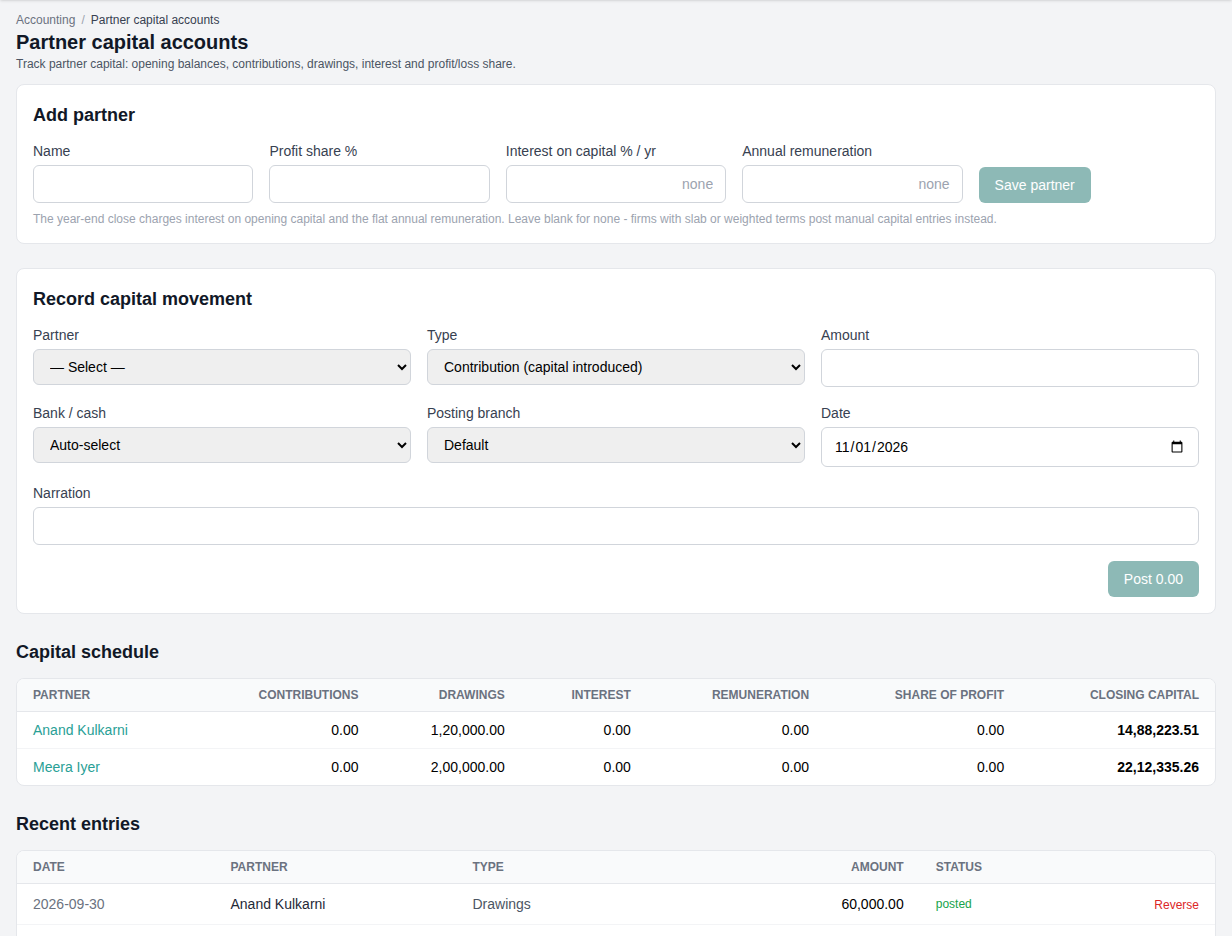
On Partner capital, add each partner with their profit share, and optionally an interest-on-capital rate and a flat annual remuneration. Record capital movements: opening capital, contributions, drawings, interest, remuneration and profit or loss share. The Capital schedule shows each partner's closing capital. The year-end close uses these figures.
Cheques in transit and post-dated cheques
Cheques in transit / PDC tracks instruments (cheques, demand drafts, post-dated cheques, NEFT, RTGS, UPI) from received to deposited to cleared or bounced. It is a tracking register only and posts nothing to the books.
Foreign-currency vouchers
Multi-currency keeps the books' own exchange rates, in rupees per unit, and posts a voucher entered in a foreign currency at that rate. These rates are entered by hand and are separate from the FX Rates in System Management that invoices use. A foreign-currency voucher with no rate on file is refused.
GST
Reverse charge is the normal case
Legal services supplied by a law firm to a business are under reverse charge: the invoice shows the GST, but the client pays it to the government, not to the firm. So the client owes the firm the taxable value only, and the firm's books post no output GST for these invoices. They appear in GSTR-1 for disclosure.
Your provider sets your firm's default (a consulting practice may charge GST itself, under forward charge), and each invoice keeps the basis it was issued under.
How each invoice is treated
The books decide each invoice's treatment in this order. The first that applies wins:
- A treatment you set by hand for that invoice, on the GST Centre's Outward tab.
- A client in a special economic zone (SEZ) or outside India: zero-rated.
- An invoice with no GST: bill of supply.
- Otherwise the invoice's own basis: reverse charge or forward charge.
Only forward charge posts output GST: Dr GST Output Control, Cr GST Payable (CGST and SGST within a state, IGST between states). A credit note takes its invoice's treatment and reverses the GST in the same way.
The client pays a forward-charge invoice's GST to the firm. A receipt applies money to the expenses first, then the fees, so the GST is the last part paid. That part clears GST Output Control (on "On receipt", it posts GST Payable), and only money beyond the invoice goes to Client Advances. A part payment that does not yet cover the fees carries no GST.
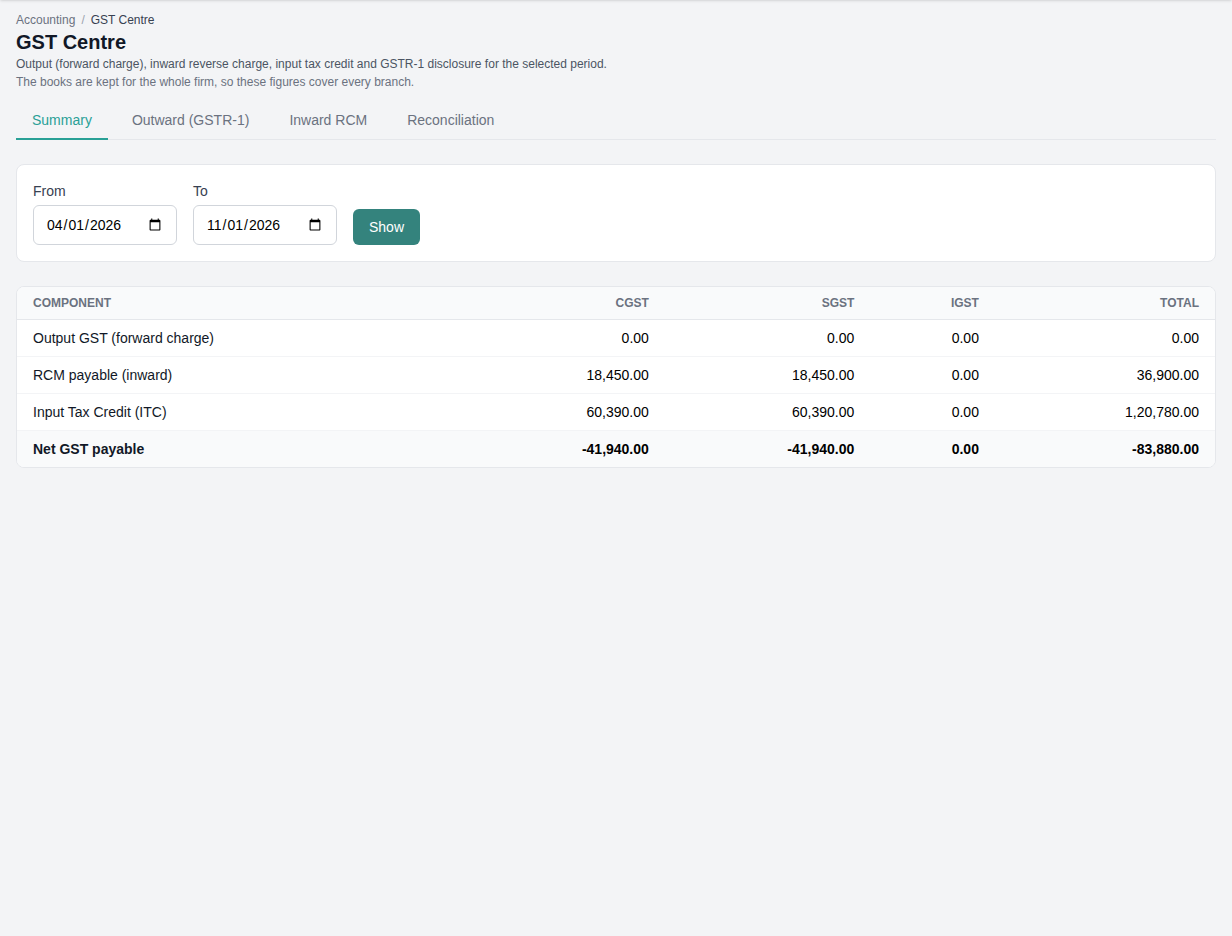
GST Centre
Choose a period and press Show. Four tabs:
- Summary: output GST, GST payable under reverse charge on what the firm buys, input tax credit (ITC), and the net GST payable (output plus reverse charge payable, less ITC), per CGST, SGST and IGST.
- Outward (GSTR-1): every issued invoice in the period with its taxable value, GST and treatment. With the GST permission you can change an invoice's treatment here.
- Inward RCM: when the firm buys a service under reverse charge (from an advocate, a senior advocate, a goods transport agency, an import of service, and so on), it pays that GST itself. Press Add inward RCM entry, enter the supplier, nature, taxable value and rate, and tick ITC eligible if the firm can claim it back. Then press Post RCM self-assessment.
- Reconciliation: GST on the invoices compared with GST in the books. Each difference should be zero.
Input tax credit and GSTR-2B
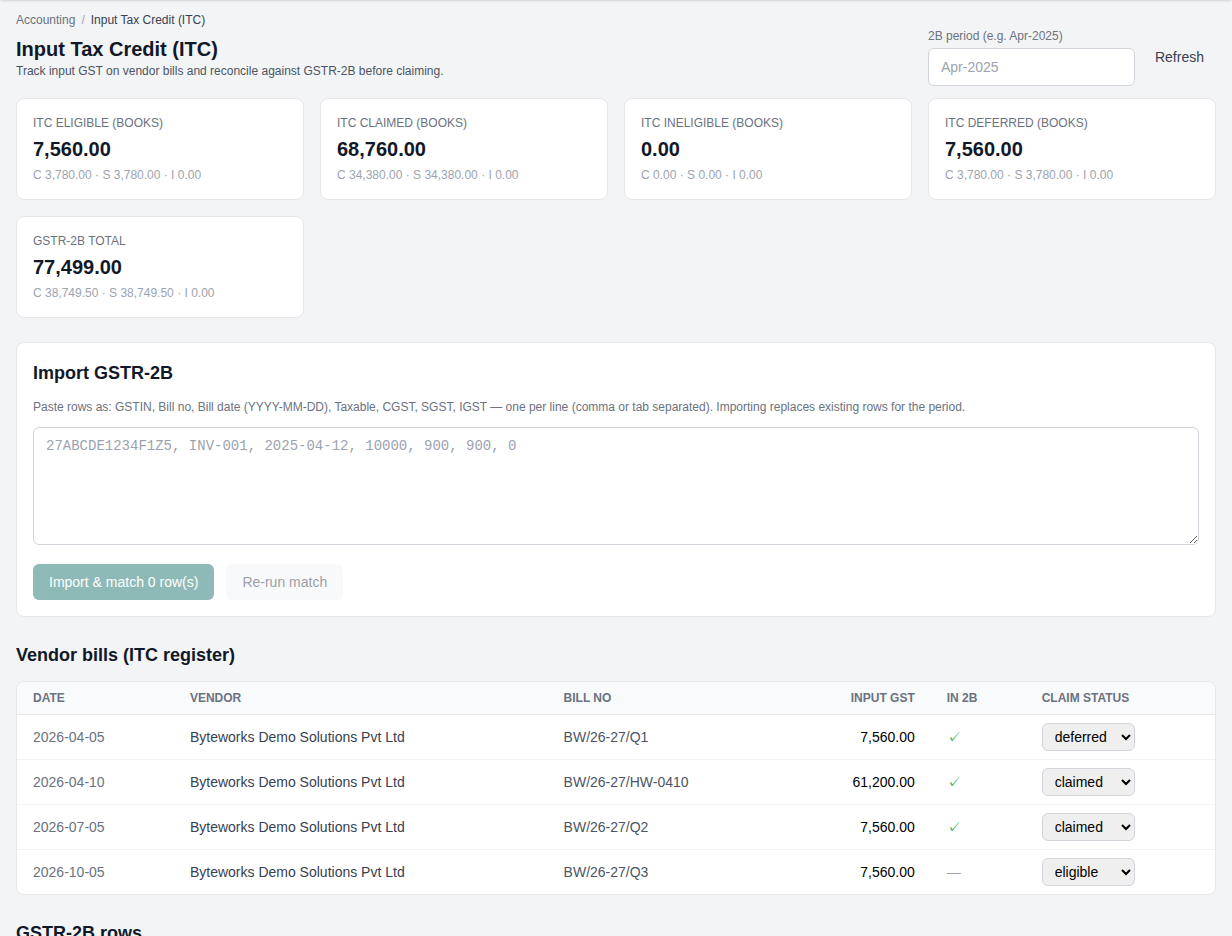
Input Tax Credit (ITC) lists the input GST on vendor bills, each with a claim status: eligible, claimed, ineligible or deferred. To check your claim against the government's statement:
- Enter the 2B period, for example Apr-2026.
- Paste the GSTR-2B rows: GSTIN, bill number, bill date, taxable value, CGST, SGST, IGST, one per line.
- Press Import & match. Lexmetry matches each row to a vendor bill by GSTIN and bill number, within one rupee, and ticks "In 2B".
- Set each bill's claim status. Importing again for the same period replaces that period's rows.
Credit note register
A read-only list of credit notes for a period, with their invoice, treatment, values and whether GST was reversed. Use it for GSTR-1 amendments.
For a list of every credit note by type, with the fees, expenses and GST each one credits, use Reports > Credit Note Register. It works without the accounting module.
e-Invoices
Generate the e-invoice on the government portal yourself, then record it in Lexmetry: press e-Invoice on an issued invoice (on the Invoices screen) or Manage on e-Invoice register. Enter the IRN (invoice reference number, 64 characters), the acknowledgement number and date, and the signed QR text, then press Capture registration. If you cancel the e-invoice on the portal, record the cancellation here too.
At present the captured IRN and QR code do not print on the invoice PDF. Lexmetry stores them, and the register lists them.
Month end and year end
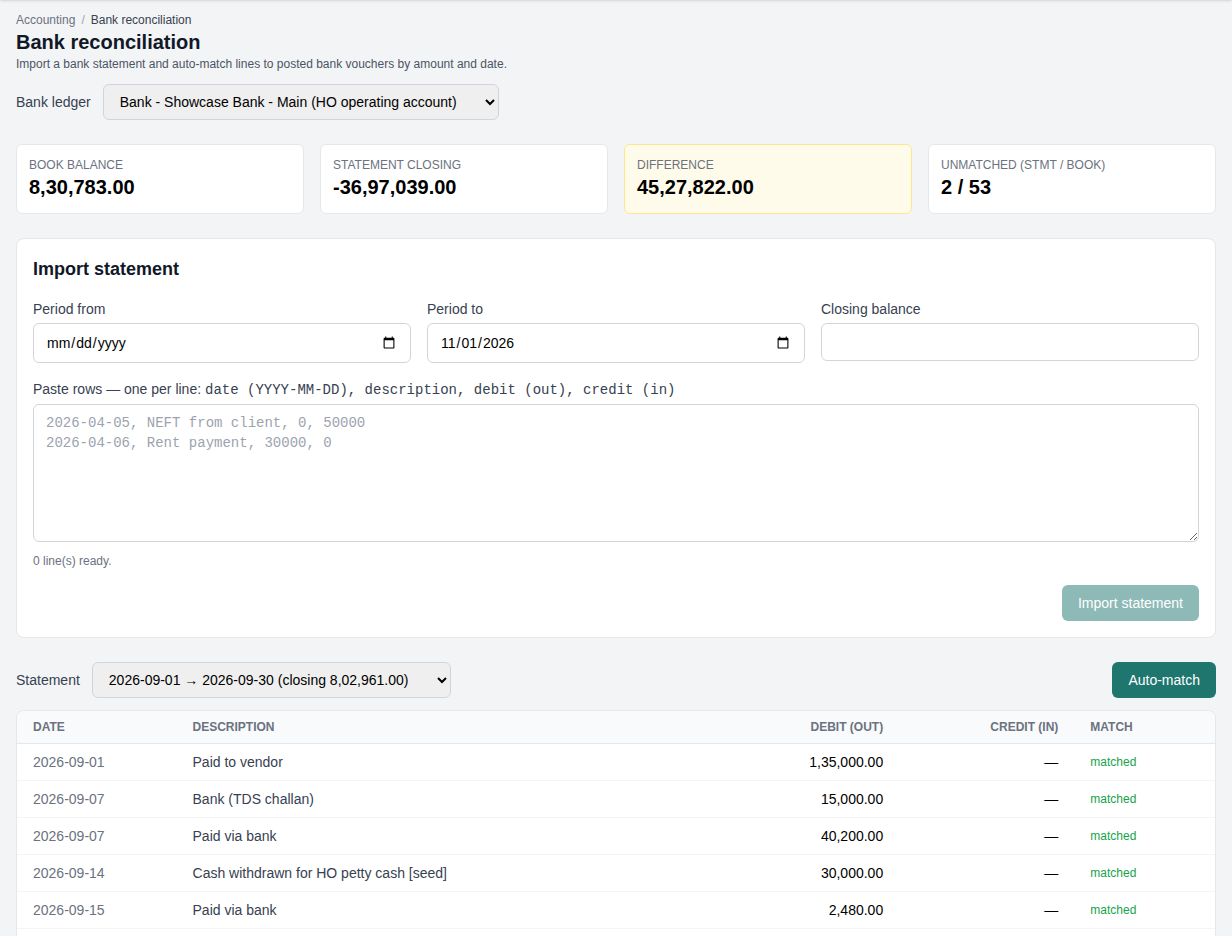
Bank reconciliation
- On Bank reconciliation, pick the bank ledger.
- Under Import statement, enter the statement's period and closing balance, and paste its rows: date, description, money out, money in. Press Import statement.
- Press Auto-match. Lexmetry pairs statement lines with posted bank vouchers by amount and date.
- Read the tiles: book balance, statement closing balance, the difference, and how many lines are unmatched on each side. Post what is missing (bank charges, interest, a transfer), then match again.
Bank Book shows one bank account's receipts and payments with opening, running and closing balances.
Reviewing vouchers
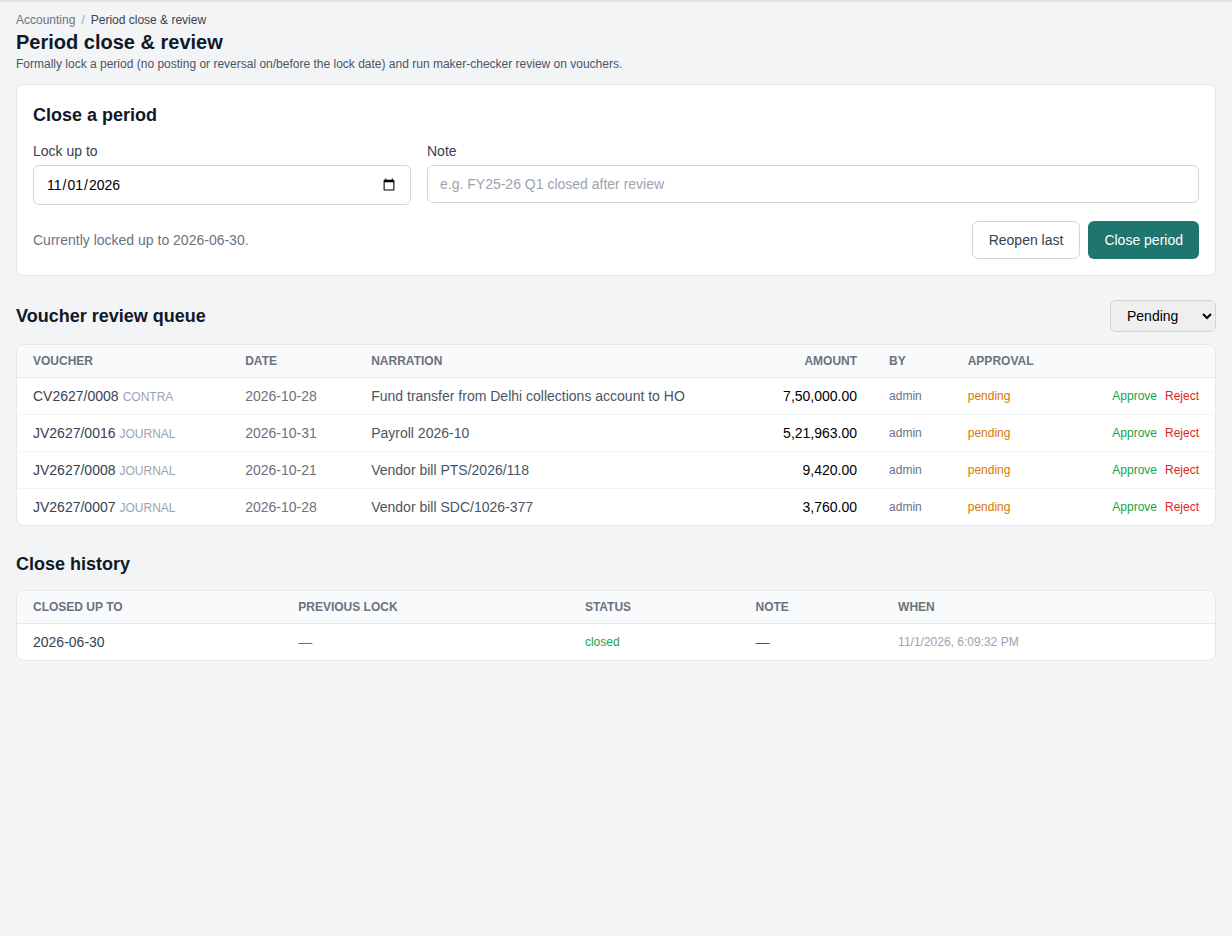
Every voucher posted by hand waits on the Voucher review queue of Period close & review. A second person presses Approve, or Reject, which reverses the voucher. Automatic vouchers from billing do not need review.
Closing a period
When a month or quarter is final, enter Lock up to and a note on Period close & review, and press Close period. From then on, nothing can be posted or reversed on or before that date, and billing cannot record receipts or payouts in it (see what the lock stops). Reopen last undoes the most recent close and restores the lock before it. The Close history keeps every close and reopen.
Reports
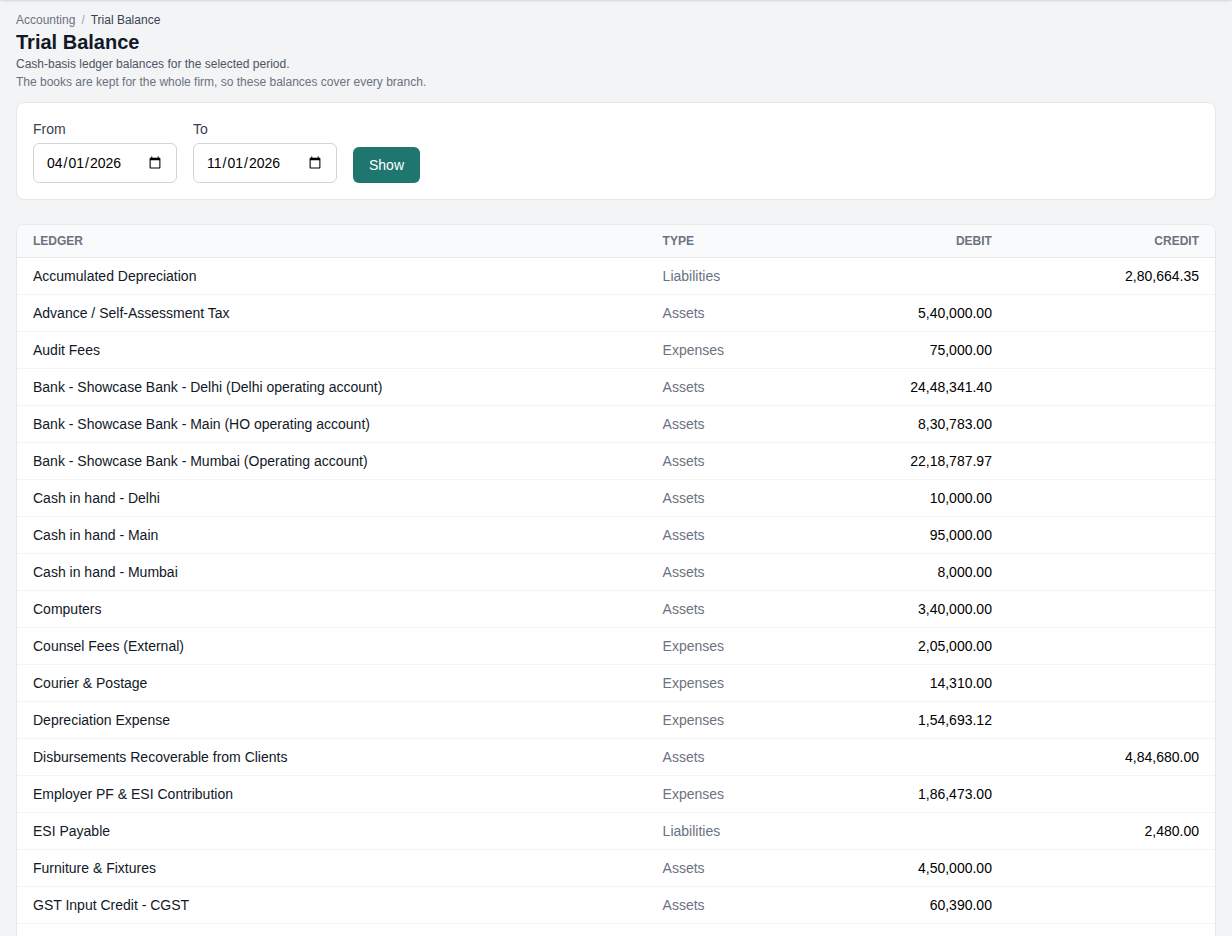
- Trial Balance: every ledger's debit or credit balance for a period. If the totals differ, opening balances are usually missing.
- Ledger: one ledger's entries over a date range, with a running balance.
- Staff Reimbursements: for each member of the firm, the rupees owed now for expenses they paid themselves, and the rupees paid back to them between two dates. A foreign expense with no exchange rate, or a payout recorded without its rupees, is counted apart and named in a note.
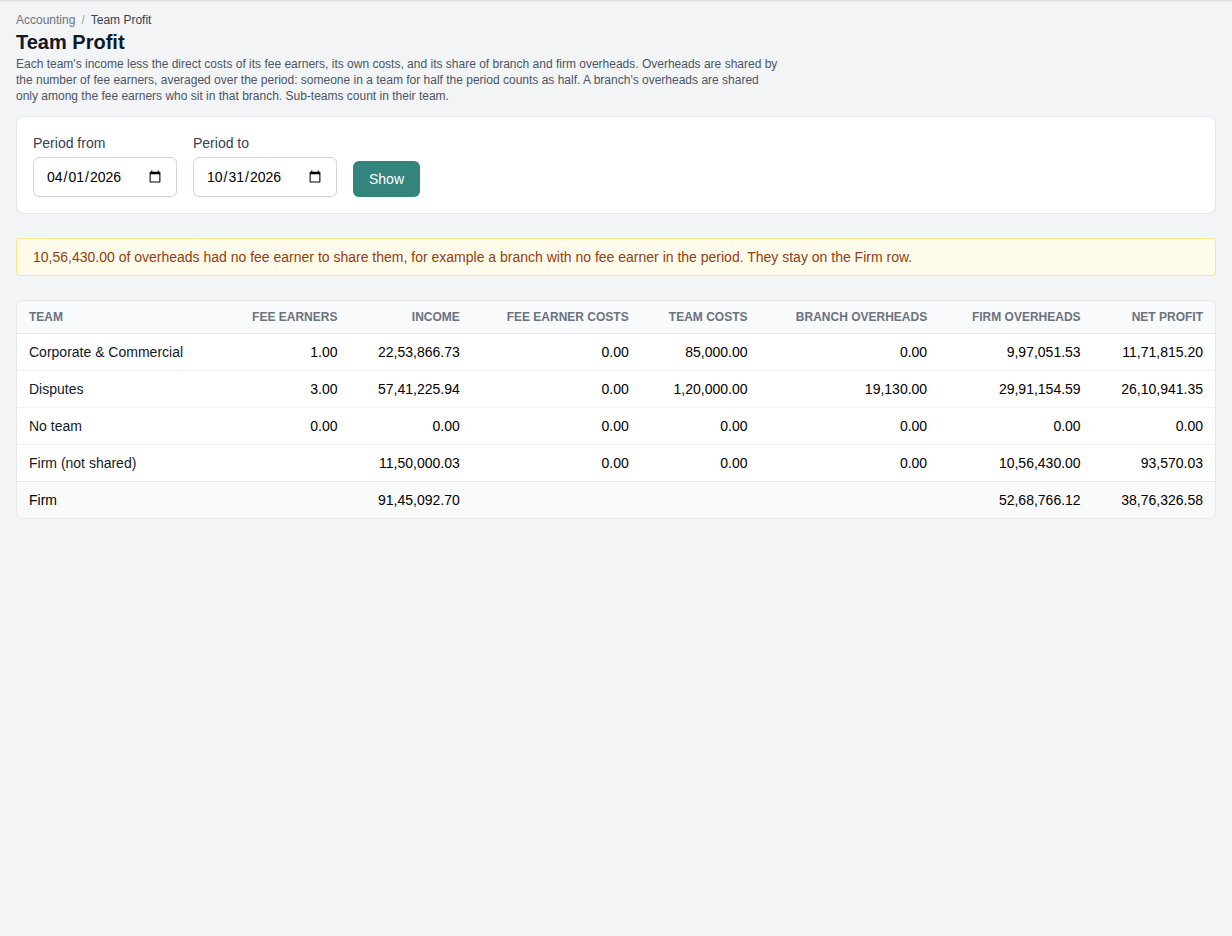
- Team Profit: for a period, each team's income less the direct costs of its fee earners, its own team costs, and its share of branch and firm overheads. Overheads are shared by the number of fee earners, averaged over the period: a person in a team for half the period counts as half. Firm overheads are shared across all the firm's fee earners; a branch's overheads only across the fee earners who sit in that branch, so a team with nobody there takes none of it. A fee earner is anyone whose role records billable work. A fee earner's own cost counts in the team they were in on the voucher date. Overheads with no fee earner to share them, and income shared to no fee earner, stay on the Firm row, so the rows add up to the firm's profit for the period. A sub-team counts in its team.
- Cost Allocation: the firm's expenses in a period, by the level each was booked against: firm, each branch, each team and each fee earner. The four totals add up to all the expense in the period. Expenses paid for clients are recovered from them, so they are not in this report.
- Team Income: the fees collected in a period, by team. Each receipt's professional fees and their TDS are shared among the fee earners as the payment receipt allocation shares them. Each fee earner's share goes to the team they were in on the day they did the work, not the day the money came in. A sub-team counts in its team. A fee earner who was in no team shows under No team, and the part of a receipt shared to no fee earner shows as Allocated to Firm, so the total is the firm's collected fees. Expenses recovered from clients are not team income. When an invoice has no dated time entries for a fee earner, for example an invoice brought over from the previous system, that share goes by the invoice date, and the report says how many shares it placed that way.
- Consolidated / group reporting: profit and loss and balance-sheet movement for the whole firm, and balances for each legal entity your firm has set up in System Management, Firm Details. The heading names your firm's basis, and the figures follow it.
- Audit & retention export: the full trail of posted vouchers for a period, with cost centre, reversals and who posted each one, as CSV or Excel. Use Preview to check before you export.
Trial Balance and GST Centre open with the From date set to the first day of your firm's current financial year. The books are kept for the whole firm, not per branch, so the reports have no branch selector and always cover every branch.
Closing the year
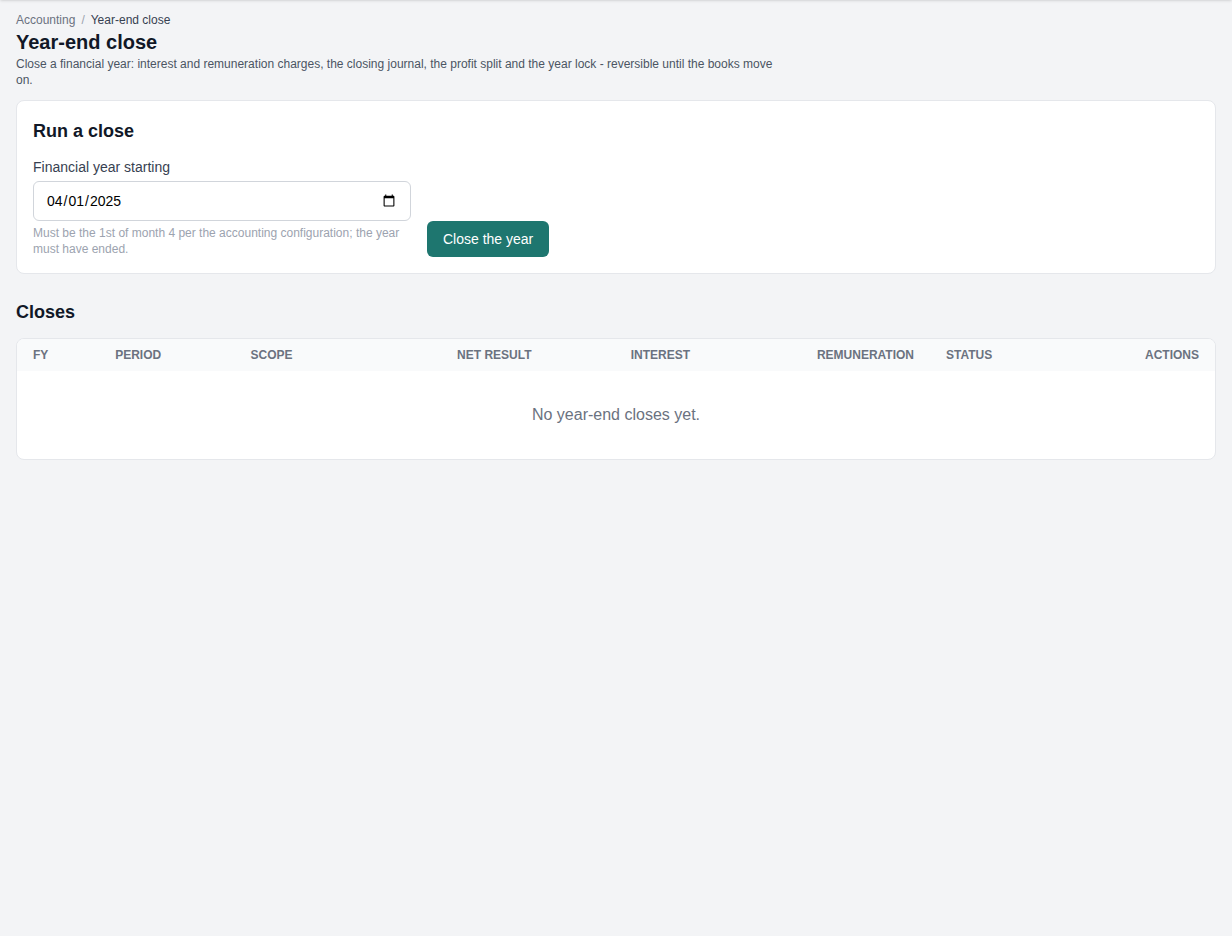
After the financial year has ended and its books are final, open Year-end close, choose the year (and the legal entity, if your firm has more than one), and press Close the year. In one step, dated the last day of the year, Lexmetry:
- Charges each partner's interest on opening capital and annual remuneration, as set on Partner capital.
- Closes every income and expense ledger into the P&L appropriation account.
- Shares the profit or loss among the partners by profit share. The last partner takes any rounding.
- Locks the year.
The close refuses to run unless the active partners' profit shares add up to exactly 100%, and it refuses a year that has not ended. Firms with slab remuneration or interest on a weighted balance leave those settings blank and post the entries by hand first. Balance-sheet ledgers carry forward by themselves. Reverse undoes the whole close and restores the earlier lock, so you can correct and close again.
Cash or accrual
Both bases use the same ledgers and the same reports. They differ in when income and expenses are recorded. Set the basis on Accounting Settings; the Accounting page, Trial Balance and the dashboard say which one your firm uses.
| Cash (the default) | Accrual | |
|---|---|---|
| Fees become income | When the client pays | When the invoice is issued |
| Invoice issued | Posts nothing, except GST on a forward-charge invoice | Books Sundry Debtors and the income |
| Receipt | Books the income | Settles Sundry Debtors |
| Credit note | Reverses forward-charge GST only | Reverses the matching part of the invoice entry |
| Expense recorded | Posts nothing | Books the amount owed, on the expense date |
| Expense paid | Books the expense against the bank | Clears the amount owed against the bank |
| Vendor bills | Booked when the bill is entered, on both bases | |
| Backfill opening balances | Disbursements Recoverable from Clients | That, and Sundry Debtors |
On both bases, money a client pays in excess goes to Client Advances (Unbilled), except the GST on a forward-charge invoice. Unbilled work is never recorded as income on either basis.
Screen by screen
The cards on the Accounting page, in the order they appear. A card you have no permission for is hidden.
Daily work
| Card | What it is for |
|---|---|
| Vouchers | Every voucher, automatic ("(auto)") and manual. Post a new one, view its lines, or reverse it. |
| Payment voucher | Pay expenses, taxes or parties from a bank or cash ledger. |
| Contra voucher | Move money between the firm's own bank and cash accounts. |
| Expense Queue | Link each expense's payee to a vendor and mark it paid. The payout posts by itself. |
| Vendor bills | Enter purchase and expense bills with input GST, reverse charge and TDS. Reverse a bill that has not been paid. |
| TDS Payable | TDS withheld from vendors, waiting to be deposited. Record the challan. |
| Cheques in transit / PDC | Track cheques and other instruments from received to cleared or bounced. Posts nothing. |
Banking, payroll & tax
| Card | What it is for |
|---|---|
| Bank reconciliation | Import a bank statement and match it to the books. |
| Payroll | Post the payroll journal and the PF, ESI and salary TDS challans. |
| Advance / self-assessment tax | Record income-tax challans. |
| Fixed assets & depreciation | The asset register, asset blocks and depreciation runs. |
GST
| Card | What it is for |
|---|---|
| GST Centre | Output GST, inward reverse charge, ITC, the net payable and GSTR-1 disclosure for a period. |
| Input Tax Credit (ITC) | Input GST on vendor bills, matched against GSTR-2B. |
| Credit note register | Credit notes for GSTR-1 amendments. Read only. |
| e-Invoice register | IRN registrations captured from the government portal, and their cancellations. |
Reports
| Card | What it is for |
|---|---|
| Bank Book | One bank account's receipts and payments with running balance. |
| Staff Reimbursements | What the firm owes each person for expenses they paid themselves, and what it paid them in a period. |
| Team Income | Collected fees by team, by the team each fee earner was in when the work was done. |
| Cost Allocation | Expenses in a period by firm, branch, team and fee earner. |
| Team Profit | Each team's income less its direct costs and its share of branch and firm overheads. |
| Ledger | Any ledger's entries over a date range. |
| Trial Balance | All ledger balances for a period. |
| Tax depreciation schedule | Depreciation per block at Income-tax rates, for the return. Never posted. |
| Consolidated / group reporting | Firm-wide profit and loss and balance-sheet movement, and balances per legal entity. |
| Audit & retention export | The posted-voucher trail as CSV or Excel. |
Masters & setup
| Card | What it is for |
|---|---|
| Chart of Accounts | Ledgers by type. Add, rename or disable ledgers. System ledgers cannot be deleted. |
| Cost Centres | Headings for slicing reports, such as overheads or practice groups. A receipt's income is tagged to its matter's cost centre. A team's own cost centre appears here once a cost is booked to the team. |
| Vendors & TDS sections | The vendor master with KYC documents, and the TDS rates under sections 392 and 393. |
| Partner capital | Partners, profit shares, and capital movements. |
| Opening balances | Stage, check and post the opening journal. |
| Current-year backfill | Bring this year's billing into the books after a mid-year start. |
| Multi-currency | The books' exchange rates, and vouchers in a foreign currency. |
| Period close & review | Lock a period, and approve or reject manual vouchers. |
| Year-end close | Close the financial year and share the result among the partners. |
| Accounting Settings | Basis, GST liability basis, period lock, expense category ledgers, and the chart of accounts repair. |
Not available yet, and known limits
Not available yet
- Automatic e-invoices. The IRN is generated on the portal and captured by hand. Generating it from Lexmetry is planned. The captured IRN and QR do not yet print on the invoice.
- Books per branch. The books are kept for the whole firm, so the reports cover every branch.
- Other accounting software. Lexmetry keeps the books itself. Sending entries to Tally or Zoho Books is not offered.
Known limits
- A posted voucher cannot be edited. Reverse it and post again.
- Team Profit shares a branch's overheads by each fee earner's branch today. Lexmetry does not keep a history of branch moves, so a person who changed branch in the period counts fully in the branch they are in now.
- Automatic entries other than expense payouts, such as payroll and depreciation, count as firm overheads.
- A vendor bill that has been partly paid cannot be reversed.
- The backfill runs once per financial year.
- The tax depreciation schedule does not record disposals yet, and uses each block's current rate for every year.
- Number series run per voucher type and year for the whole firm, not per legal entity.
- The non-resident TDS code under section 393(2) is set at 0%. Enter the rate under the Act or the tax treaty that applies.
- A run of part-payments in a foreign currency can leave up to one paisa per payment on the debtor.
- When a partial credit note or a write-off credits an expense the client will not repay, the expense stays in Disbursements Recoverable from Clients: a billed expense cannot be written down. Post a journal for it: Dr the expense ledger, Cr Disbursements Recoverable from Clients.
Glossary
- Accrual basis
- Books that record income when the invoice is issued and expenses when they are incurred.
- Asset block
- A group of fixed assets that share a depreciation rate. Each block has a book rate and an Income-tax rate.
- Backfill
- Bringing this financial year's billing into the books after accounting was switched on part way through it.
- Bill of supply
- An invoice that carries no GST.
- Books queue
- The ordered list of billing changes waiting to post to the books.
- BSR code
- The bank branch code printed on a tax challan.
- Cash basis
- Books that record income when money arrives and expenses when they are paid.
- Challan
- The receipt for a tax deposit with the government: TDS, PF, ESI, advance tax or GST.
- Client Advances (Unbilled)
- Money a client has paid beyond what is owed, held until it is used.
- Contra voucher
- A transfer between the firm's own bank and cash accounts.
- Cost allocation
- The level an expense line is booked against: firm, branch, team or one fee earner. Team Profit reads it.
- Cost centre
- A heading for slicing reports, such as a matter, a practice group or an overhead.
- Disbursements Recoverable from Clients
- The asset that holds expenses the firm paid for clients until the clients repay them.
- Dr / Cr
- The debit and credit sides of a voucher.
- Exchange Difference
- The ledger for the rupee gain or loss between the rate at which something was booked and the rate at which it was settled.
- Fee earner
- Anyone whose role records billable work.
- Forward charge
- The firm charges GST to the client and pays it to the government.
- Go-live date
- The day accounting was switched on; the end of the backfill window.
- GST Output Control
- The ledger on the other side of GST Payable when a forward-charge invoice posts its GST.
- GSTR-1, GSTR-2B
- The GST return of outward supplies, and the government's statement of the firm's input tax credit.
- IRN
- Invoice reference number: the e-invoice registration number from the government portal.
- ITC
- Input tax credit: GST the firm paid on purchases that it can set off against GST it owes.
- Journal voucher
- A voucher that moves amounts between ledgers without bank or cash.
- Ledger
- One account in the books, such as a bank, an income or an expense.
- Lock date
- The date up to which the books are closed. Nothing can be posted on or before it.
- OPE
- Out-of-pocket expense: an expense on a client's matter that the firm bills to the client.
- Opening Balance Equity
- The balancing ledger for the opening journal.
- P&L appropriation
- The account into which the year's income and expenses close, and from which the result is shared among the partners.
- Reimbursements Payable to Staff
- What the firm owes members of the firm for expenses they paid, on accrual books.
- Reverse charge (RCM)
- The recipient of a service pays its GST to the government, not the supplier.
- Reversal
- A mirror voucher that cancels one already posted. Both stay in the books.
- Sundry Creditors
- What the firm owes vendors and other outsiders.
- Sundry Debtors
- What clients owe the firm, on accrual books.
- TDS
- Tax deducted at source. TDS Receivable is tax clients withheld from the firm; TDS Payable is tax the firm withheld from others and must deposit.
- Voucher
- One double-entry record in the books. Types: receipt (RV), payment (PV), contra (CV), journal (JV), credit note (CN) and debit note (DN).
- WDV, SLM
- Written-down value (depreciation on the reducing balance) and straight-line method (an equal amount each year).
- Zero-rated
- A supply to a special economic zone or abroad, on which GST is charged at nil.